Download Plug-ins

Revit

2

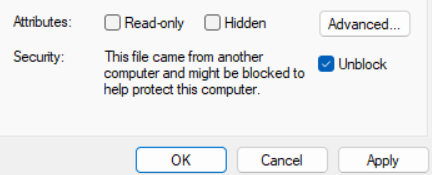
Unblock zip folder

Before extracting unblock the zip folder in properties.

3

Run installer

The installer requires admin mode and will automatically uninstall the previous version

4

Open plug-in

Under the Add-ins tab in the Revit ribbon, select the Finch icon to open the plug-in.

Alternate installation methods

Install by placing files into the Revit Addins Folder
Unblock the zip folder in properties before extracting

Place files in:

%Appdata%\Autodesk\Revit\Addins\2023 (or 2024) folder

or

C:\ProgramData\Autodesk\Revit\Addins\2023 (or 2024) folder

When updating to a new version, delete the old files from the folder before placing the new ones.

Install via Autodesk

Autodesk App Store

This version may not have the latest updates, as the plug-in updates have to go through an approval process each time they are submitted. If you would like the latest release, you can use one of the other two methods.

Rhino

1

Open Package Manager

Type Package Manager into the Rhino command line.

2

Search for Finch

In the search field type in Finch to find the plug-in.

3

Install the latest version

Select the latest version from the drop down menu and install it.

4

Restart Rhino

After reopening Rhino, type Finch into the command line and log in.

The Finch plug-in is compatible with Rhino versions 7.24 and newer, as well as Rhino 8. If you have an older Rhino version, the newest Finch plug-in releases will not appear in the package manager.

Rhino 6 SR35+

Latest version: v0.1.92

Unblock the zip folder in properties before extracting
  • In Rhino 6, type Plugin Manager into the command line.

  • Hit Install and select the Finch.rhp file from the unzipped folder.

  • Hit OK and type Finch into the command line.

Forma

1

Enter your project in Forma

Under the Extensions category on the left-hand menu, click +Add Extension . This will open the Autodesk App Store.

2

Find the Finch extension

In the App Store, search for Finch in the Search Bar in the top left corner or browse the extension library.

3

Add to project

Select the extension and Add it to the project. Agree to the Terms and Conditions and close the App Store to go back to your Forma project.

The extension will need to be added again for every new project that you intend to send to Finch.

Last updated