> For the complete documentation index, see [llms.txt](https://docs.finch3d.com/llms.txt). Markdown versions of documentation pages are available by appending `.md` to page URLs; this page is available as [Markdown](https://docs.finch3d.com/docs/first-steps/revit.md).
# Revit
### 1. Create your first project in Finch
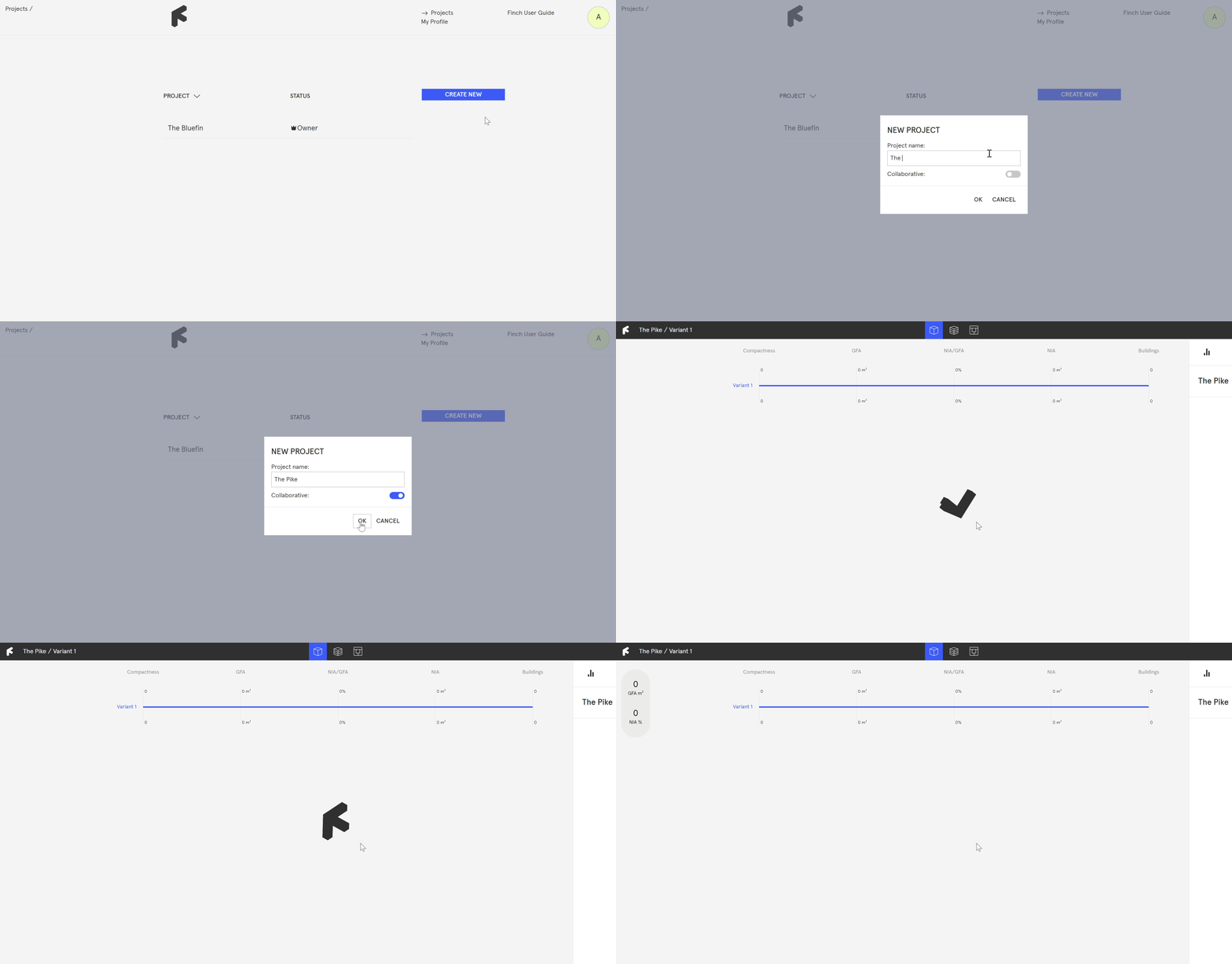
* Navigate to the **`Projects`** page on the web-app and select **`Create New`**. Give your project a name, and hit **`OK`**.
### 2. Load the project into Revit
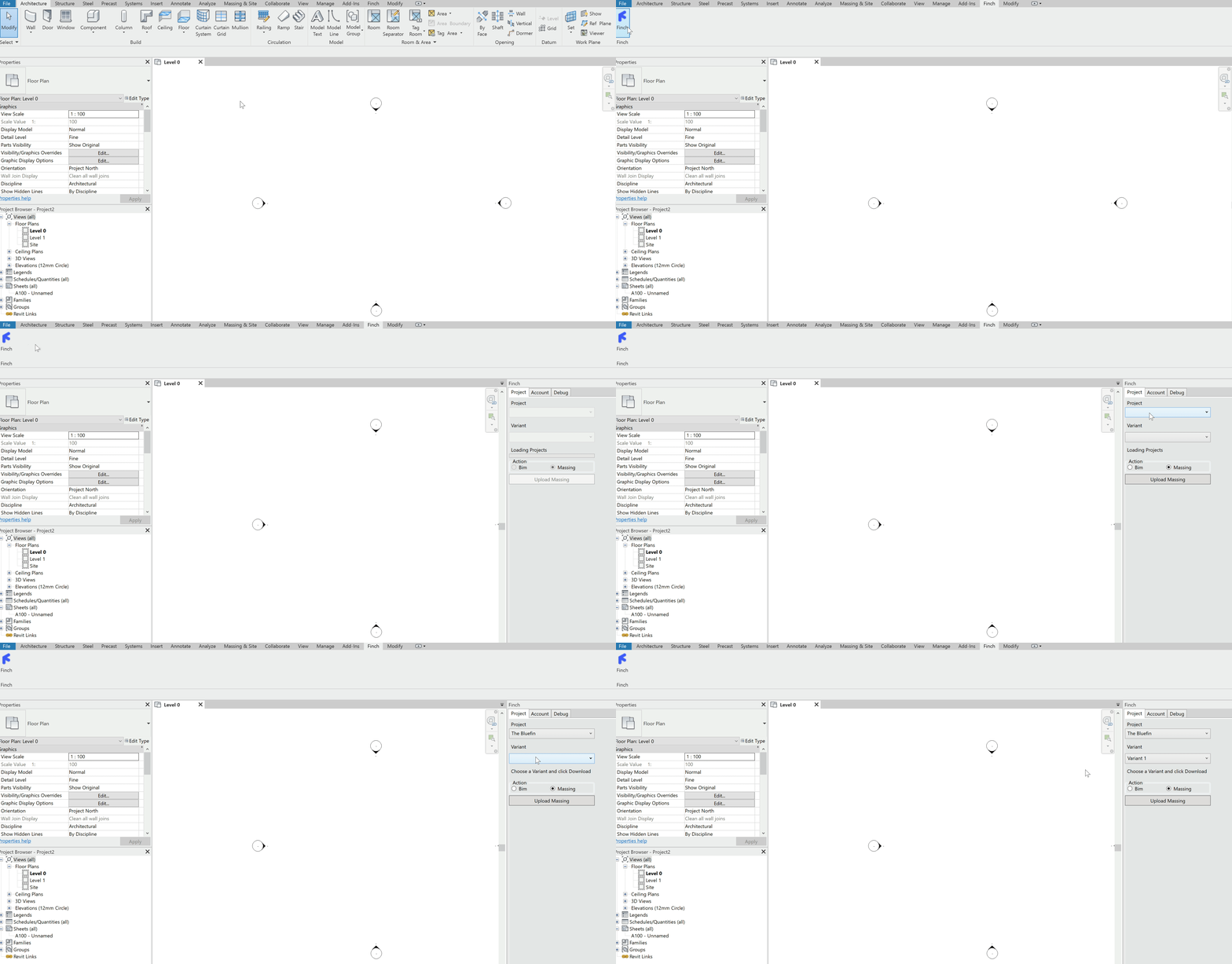
* Switch over to Revit and open the Finch plug-in, and select your new project and variant from the drop-down menus under the **`Project`** tab.
### 3. Create a building mass
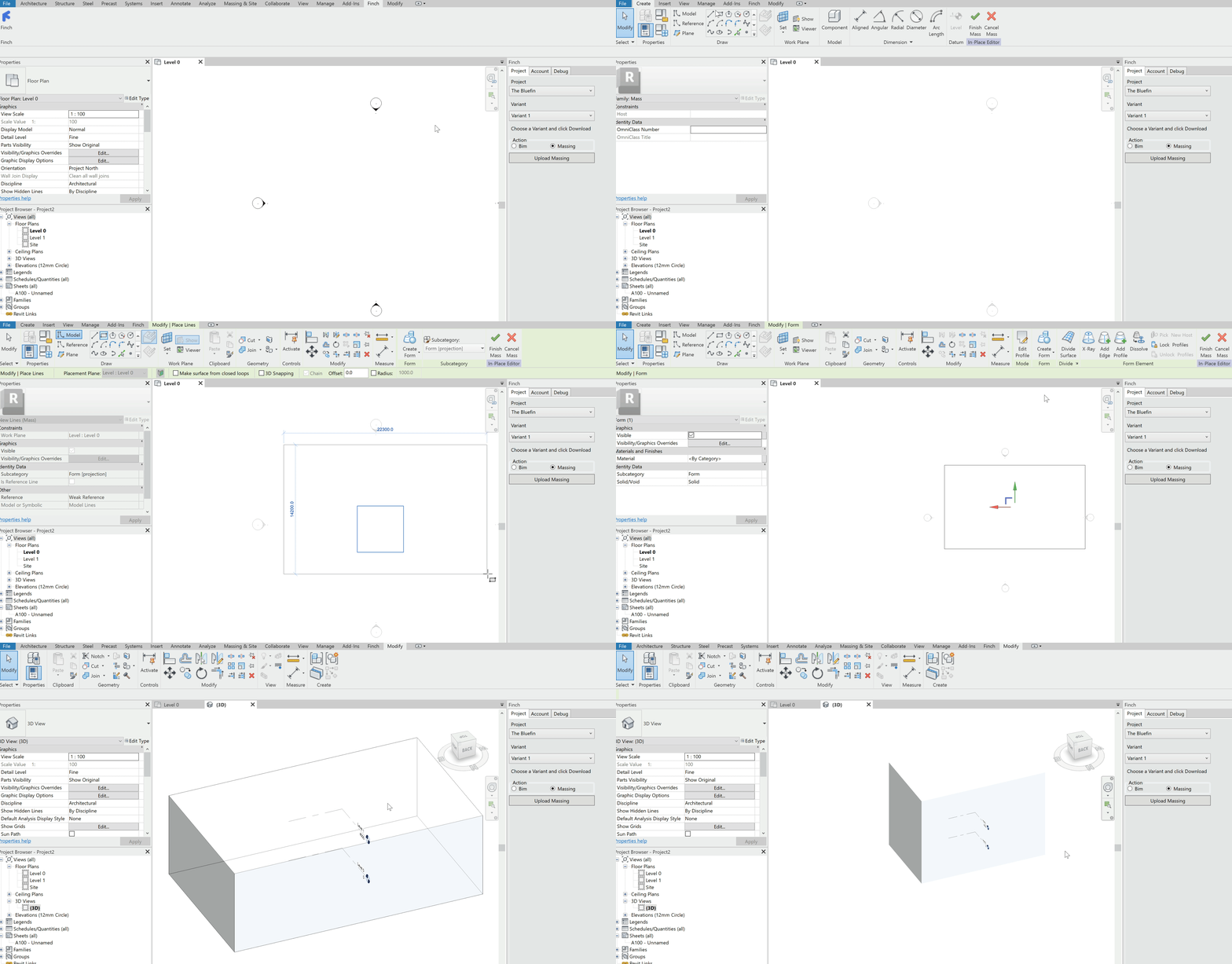
* Create a Revit mass
{% hint style="info" %}
Finch accepts **mass families**. Objects that are in the same mass will be boolean unioned upon upload. Check the **`Massing`** tab in the Finch plug-in to see how many Finch valid masses you have in your file.
{% endhint %}
### 4. Add grid lines (optional)
* In the Finch plug-in, add gridlines using the Revit grid tool.
{% hint style="warning" %}
You can snap to gridlines while editing or while generating around a custom core.
{% endhint %}
{% hint style="info" %}
When generating a floor plate, slide the **`Grid Lines`** weight fully to the right to prioritize it.
{% endhint %}
### 5. Upload
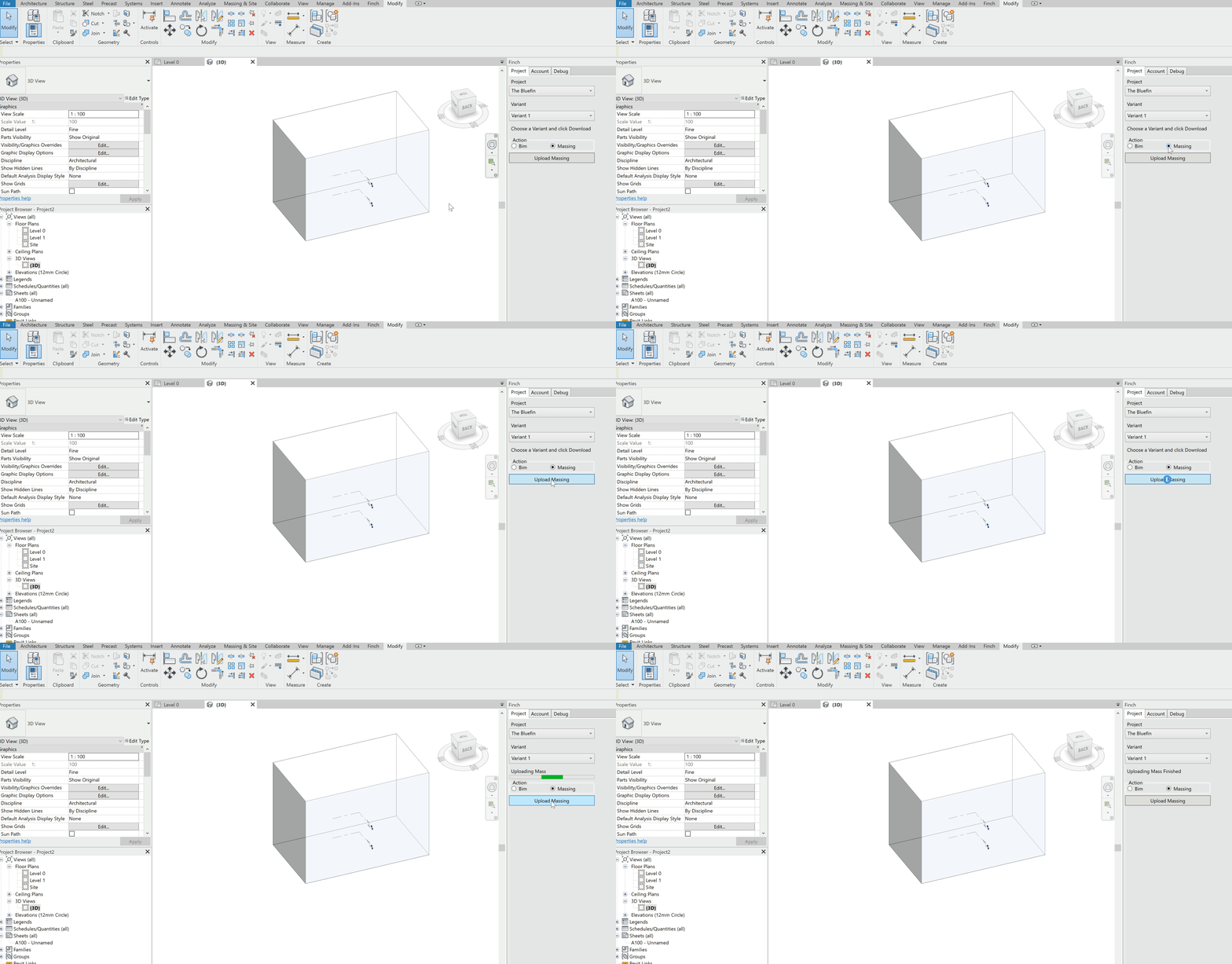
* In the Finch plug-in, select **`Massing`**.
* Check **`Active in view`** to only upload geometry that is visible in the current view.
* Select **`Upload Massing`**.
* The plug-in will display **`Uploading Mass Finished`** once the mass has been uploaded.
{% hint style="info" %}
If you want to learn how to upload multiple masses, you can read our guide on it here:
{% endhint %}
### Video Tutorial
{% embed url="" %}
***