> For the complete documentation index, see [llms.txt](https://docs.finch3d.com/llms.txt). Markdown versions of documentation pages are available by appending `.md` to page URLs; this page is available as [Markdown](https://docs.finch3d.com/docs/first-steps/revit/all-about-revit.md).
# All about Revit
Plug-in Structure
Tab
Name
Purpose
Massing
Upload Massing
Upload closed revit mass families
Bim
Download BIM
Download your generated Finch project as a BIM model
{% hint style="info" %}
**Overwriting Layer Geometry**
When uploading geometry to a Finch variant, geometry of the same type (new centerline will replace old centerline) within the variant will be overwritten with the new geometry. You will get a warning before uploading to a variant that is not empty.
{% endhint %}
### Geometry Types
Finch accepts **closed Revit masses**- meaning anything that lives inside of the **mass family**. Multiple objects inside of one mass will be boolean unioned together, so Finch will view them as one building.
{% hint style="warning" %}
In order for Finch to read your masses correctly, draw all parts of your building in one mass, so that is unioned together upon upload. Geometries that are not in the same mass group will not be unioned into one building, even if they are intersecting.
{% endhint %}
### The Revit- Finch Connection
The Revit-Finch integration works differently from the Rhino integration. While the Rhino integration is a live continuous sync, the Revit integration is **uni-directional**- meaning that you upload an **empty** mass, generate and work with the interior in Finch, and once ready to move to the next stage, **download a BIM model**.
{% hint style="info" %}
Changes made in Revit to the downloaded BIM model cannot be uploaded back to Finch- only empty masses are accepted. Thus it is advised to make any changes in Finch, and re-download the BIM model into Revit as needed.
{% endhint %}
### Centerline Positioning
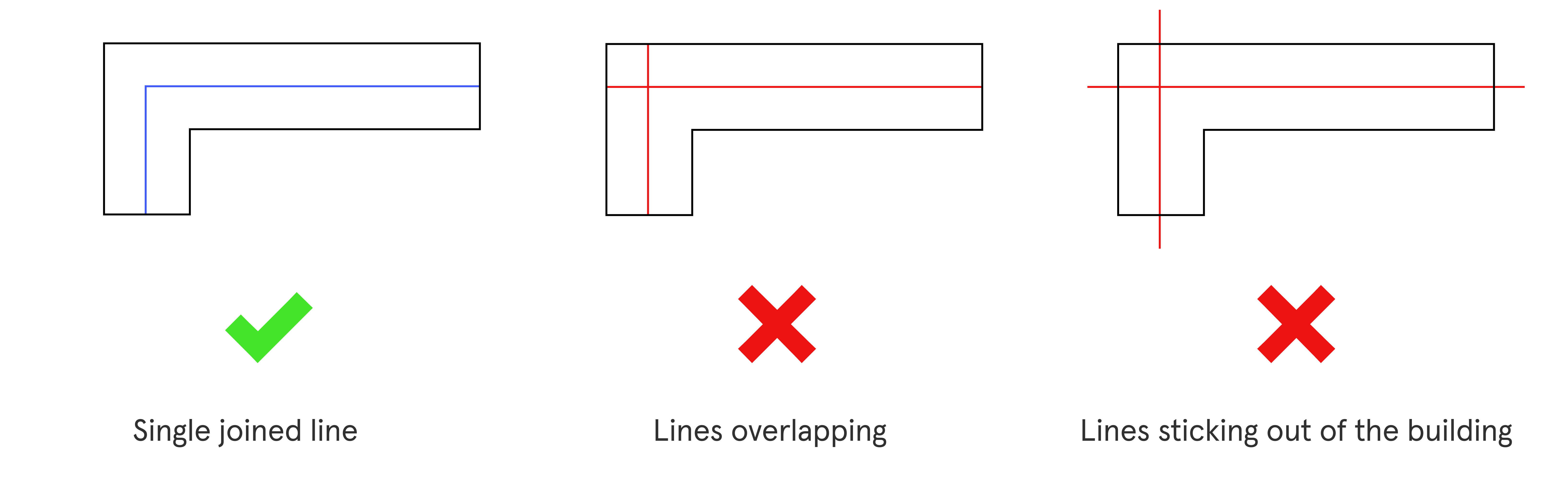
If you are uploading a centerline, be sure that it is one joined line that does not intersect itself or stick outside of the building.
{% hint style="warning" %}
The model line must have the **`centerline`** line style applied to be sent up to Finch.
{% endhint %}
### Uploading multiple masses
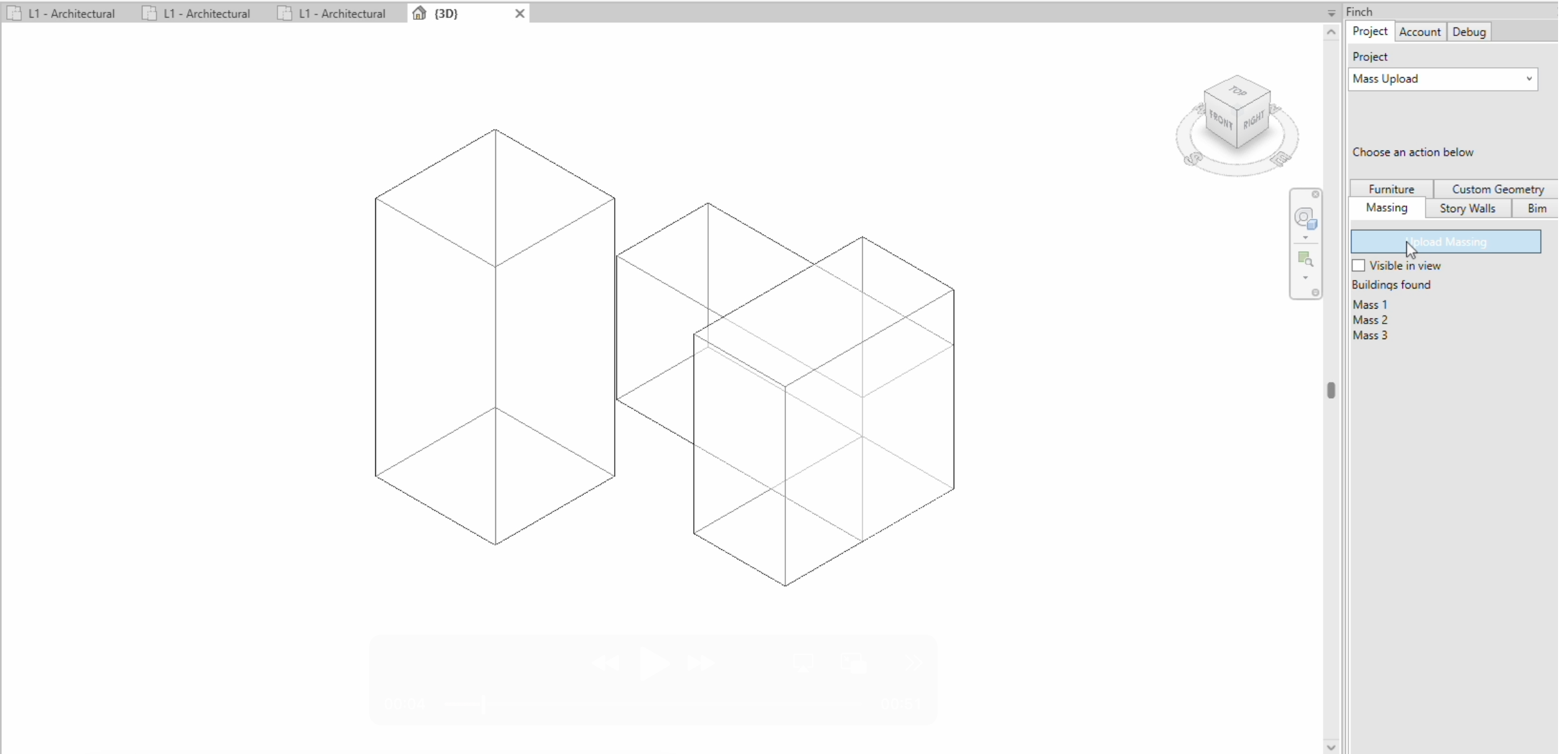
If you are uploading multiple masses from Revit into Finch and want to control which ones are recognized as individual buildings and which ones who are joined together, you do so by changing the masses group name in the pop-up window that comes up after pressing "upload massing" in the Finch plug-in, visualised in these 4 steps below:
#### 1. Create your massing in Revit and press "upload massing" in the Finch plug-in.
#### 2. Decide on which masses you want Finch to recognize as one building.
#### 3. Change the "Group" for the masses that should be joined together and press "Upload Building Mass".
Here we have changed "Mass 2" Group from F1 to F0 in order to merge it with Mass 1.
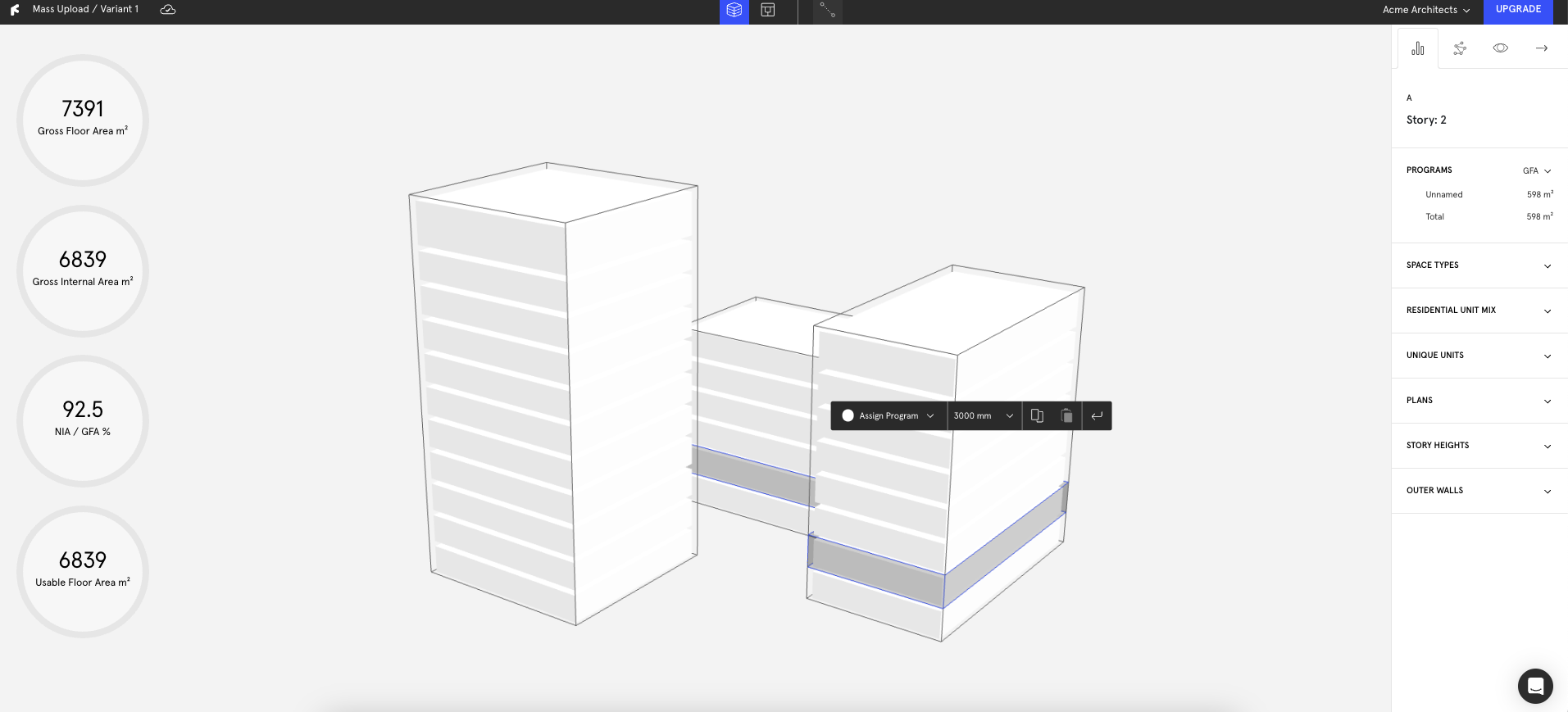
#### 4. Finch now recognizes the massing in the same group as one building and different groups as individual buildings.