> For the complete documentation index, see [llms.txt](https://docs.finch3d.com/llms.txt). Markdown versions of documentation pages are available by appending `.md` to page URLs; this page is available as [Markdown](https://docs.finch3d.com/docs/first-steps/rhino.md).
# Rhino
### 1. Create your first project in Finch
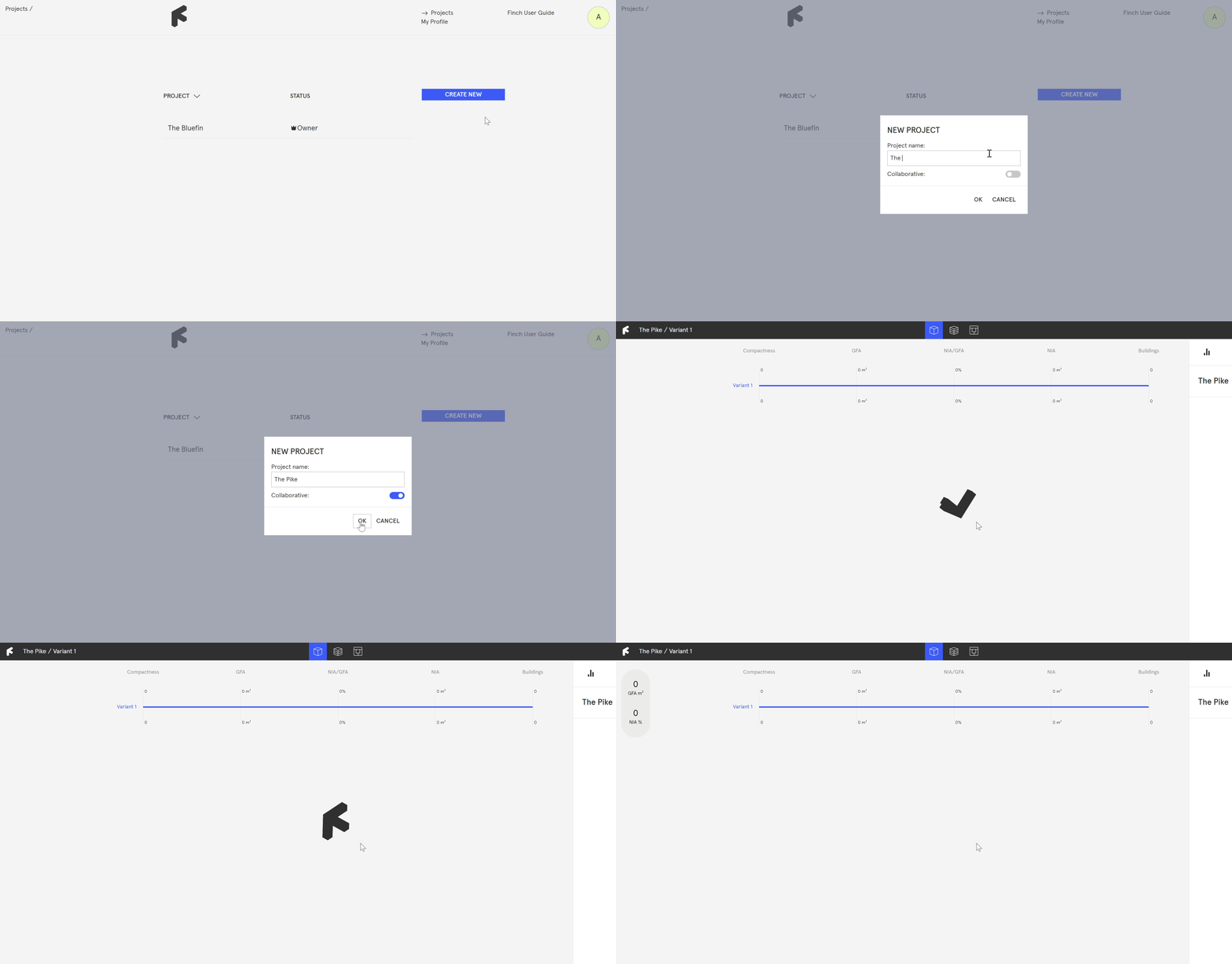
* Navigate to the **`Projects`** page on the web-app and select **`Create New`**. Give your project a name, and hit **`OK`**.
### 2. Load the project into Rhino
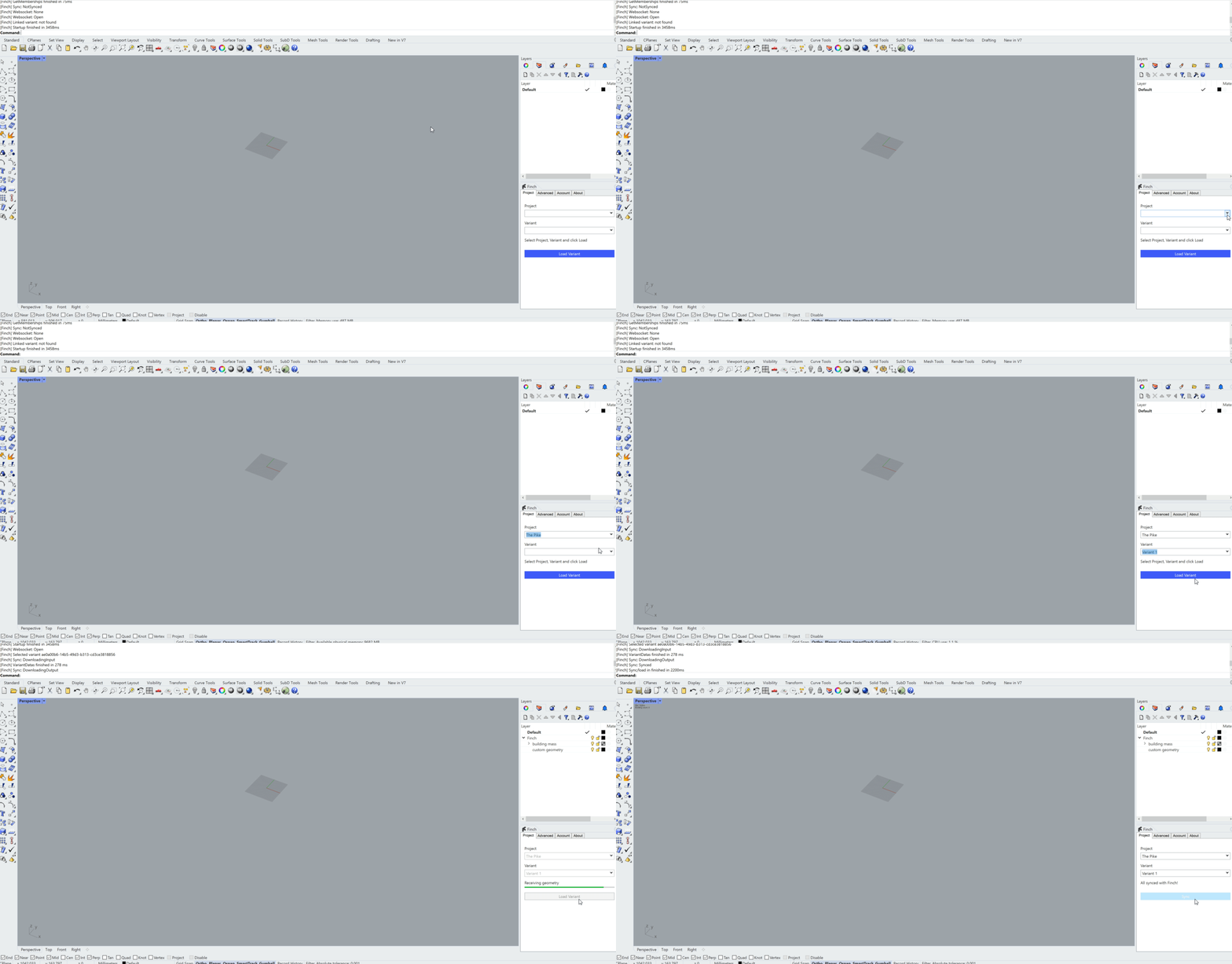
* Switch over to Rhino and type **`Finch`** to open the Finch plug-in.
* Log in with your Finch account under the **`Account`** tab.
* Under the **`Project`** tab, select your new project and variant from the drop-down menus, and click **`Load Project`**.
{% hint style="info" %}
When you load a project into Rhino, the [Finch layer structure](/docs/first-steps/rhino/all-about-rhino.md#layer-structure) is automatically imported to the layers panel. You use these to send and receive geometry to Finch.
{% endhint %}
### 3. Create a building mass
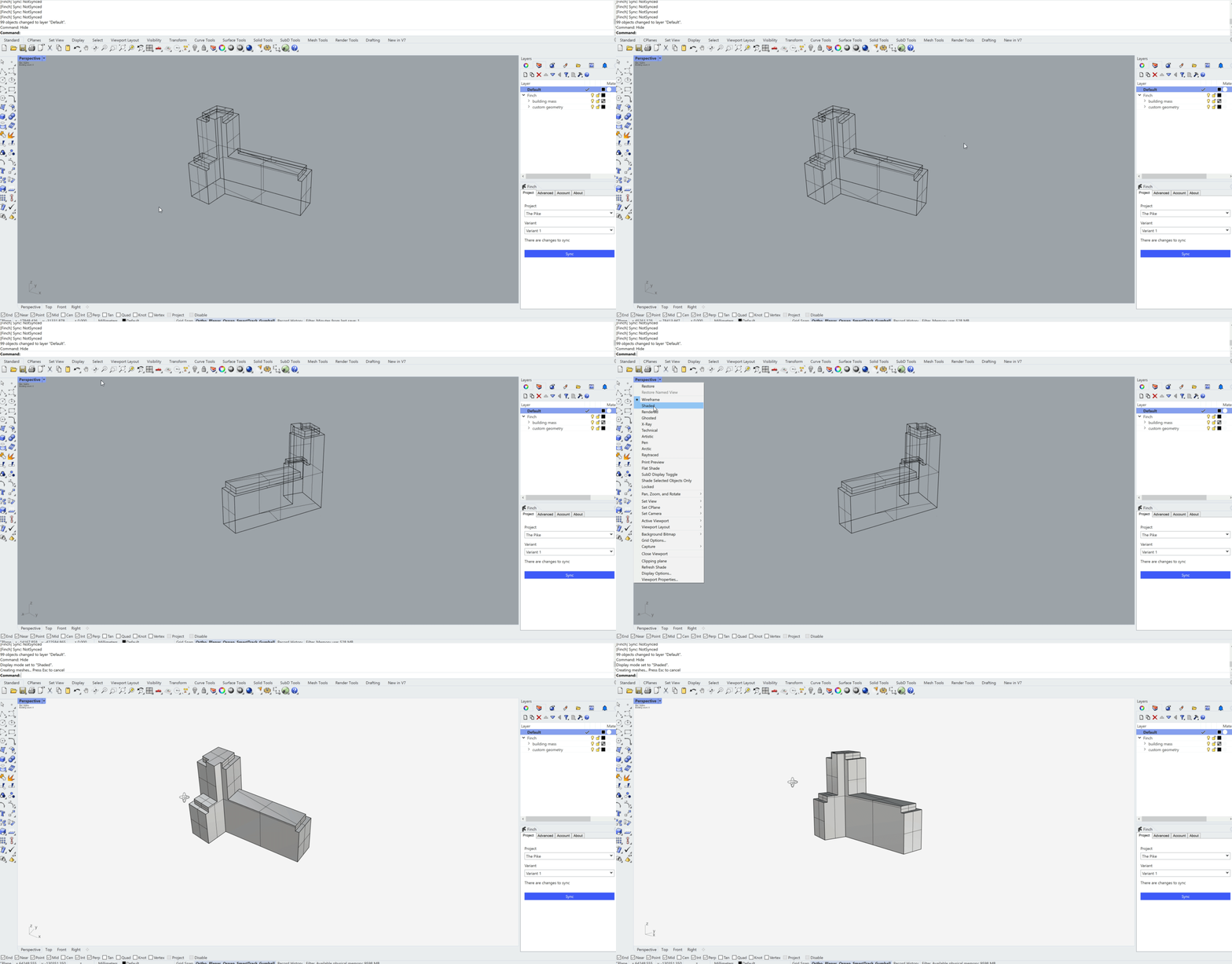
* Draw a building mass in millimeters.
{% hint style="info" %}
For precise calculations, each building mass on a site should be uploaded as a **single, unified mass**.
* If you are modeling using separate blocks for stories, use the **`BooleanUnion`** command to create a single mass prior to uploading.
{% endhint %}
### 4. Assign geometry to Finch Layers
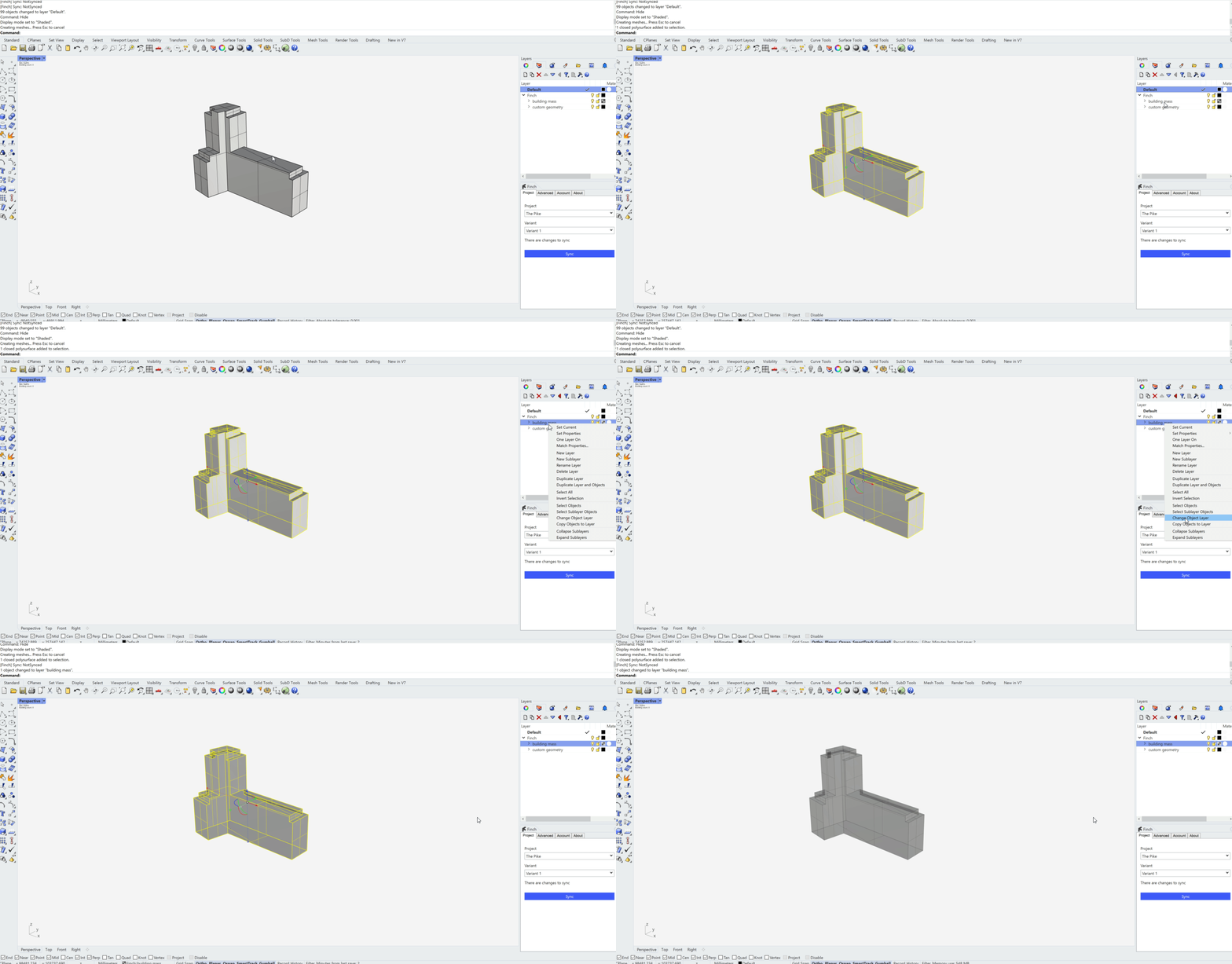
* Place the volume onto the **`building mass`** layer, multiple masses go on the same layer together.
### 5. Add grid lines (optional)
* Activate the **`grid lines`** layer.
* Place polylines on the bottom of the building.
{% hint style="warning" %}
You can snap to gridlines while editing or while generating around a custom core.
{% endhint %}
{% hint style="info" %}
When generating a floor plate, slide the **`Grid Lines`** weight fully to the right to prioritize it.
{% endhint %}
### 6. Sync project
* **`Sync`** to upload the building mass.
* Once the sync is complete, the Rhino model will display floors and a data tag within the Rhino mass and the building will appear inside of Finch.
### Video Tutorial
{% embed url="" %}
***