# Export

### 1. Export BIM to Revit

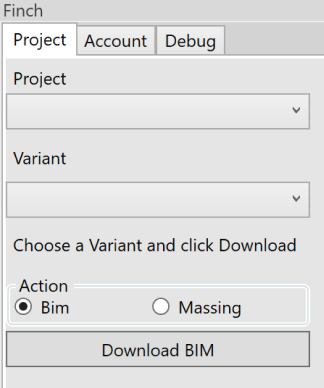
* Open the Finch plug-in, and select your project and variant from the drop-down menus under the **`Project`** tab.
* Select **`BIM`** from the **`Action`** box, and hit **`Download BIM`**.
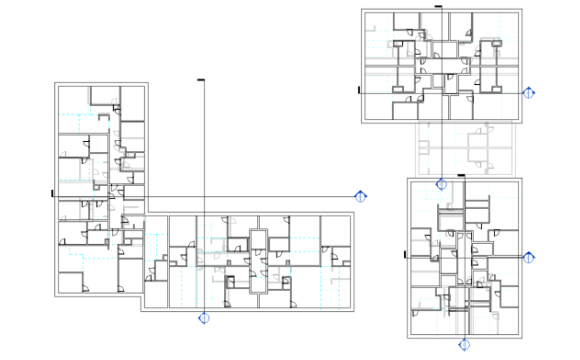
* Your Finch variant will be imported into Revit, complete with families for each object. Mass select objects to convert them to your own template.

<figure><img src="https://2550488103-files.gitbook.io/~/files/v0/b/gitbook-x-prod.appspot.com/o/spaces%2Ffr7wU7S4fvKhCNJqX17T%2Fuploads%2Fgit-blob-d1c818961781d1c5416ab2faba23e3eff737cf1a%2Frevit-interface.png?alt=media" alt=""><figcaption></figcaption></figure>

<figure><img src="https://2550488103-files.gitbook.io/~/files/v0/b/gitbook-x-prod.appspot.com/o/spaces%2Ffr7wU7S4fvKhCNJqX17T%2Fuploads%2Fgit-blob-65bfeefd0f797acf676cd159426a4b0aa8b5b0e2%2Frevit-imported.png?alt=media" alt=""><figcaption></figcaption></figure>

### 2. Export 2D plans to Rhino

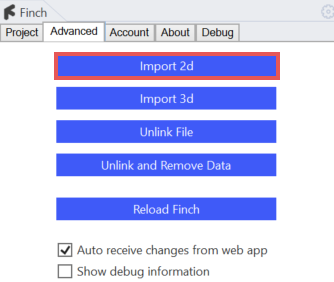
* In the Finch plug-in, under the **`Advanced`** tab, select **`Import 2D`**.
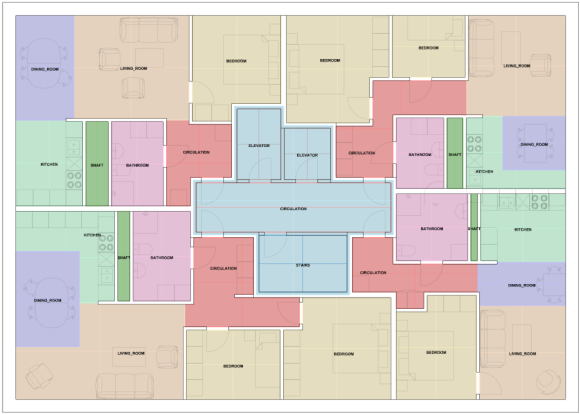
* A layer structure containing all of the 2D data will be imported into your file.

<figure><img src="https://2550488103-files.gitbook.io/~/files/v0/b/gitbook-x-prod.appspot.com/o/spaces%2Ffr7wU7S4fvKhCNJqX17T%2Fuploads%2Fgit-blob-37d1320036799907db7ec4b1d42389558dbd9464%2Frhino-interface.png?alt=media" alt=""><figcaption></figcaption></figure>

<figure><img src="https://2550488103-files.gitbook.io/~/files/v0/b/gitbook-x-prod.appspot.com/o/spaces%2Ffr7wU7S4fvKhCNJqX17T%2Fuploads%2Fgit-blob-808f64ca7c802e8de15eba2c66177220a64edc30%2Frhino-2d-import.png?alt=media" alt=""><figcaption></figcaption></figure>

### 3. Export 3D geometry to Rhino

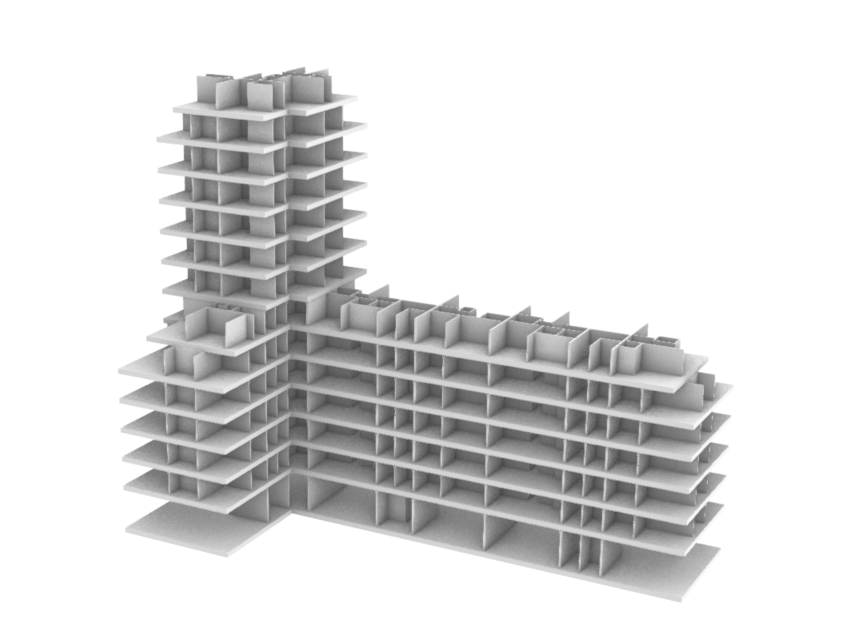
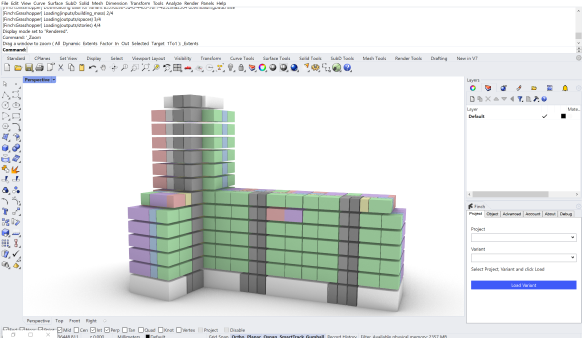
* In the Finch plug-in, under the **`Advanced`** tab, select **`Import 3D`**.
* A layer structure containing all of the 3D data will be imported into your file.

<figure><img src="https://2550488103-files.gitbook.io/~/files/v0/b/gitbook-x-prod.appspot.com/o/spaces%2Ffr7wU7S4fvKhCNJqX17T%2Fuploads%2Fgit-blob-7a4df740bcbbf44e57c49adbac52cf8961dc8e6d%2Frhino-3d-import.png?alt=media" alt=""><figcaption></figcaption></figure>

### 4. Export / sync to Grasshopper

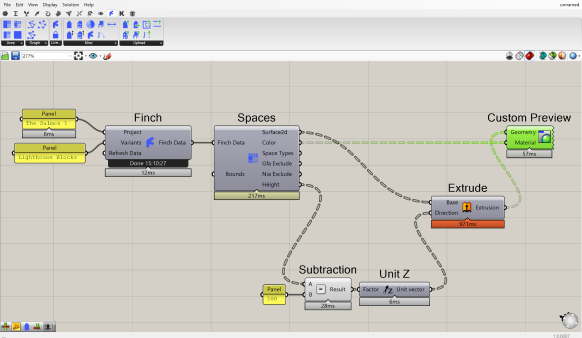
* Users can stream all data into grasshopper using the **`Finch`** component and the project and variant names.

<figure><img src="https://2550488103-files.gitbook.io/~/files/v0/b/gitbook-x-prod.appspot.com/o/spaces%2Ffr7wU7S4fvKhCNJqX17T%2Fuploads%2Fgit-blob-fd90fb15d77fb4567c1078dfac3a6738c4e7f593%2Fgh%20import1.png?alt=media" alt=""><figcaption></figcaption></figure>

<figure><img src="https://2550488103-files.gitbook.io/~/files/v0/b/gitbook-x-prod.appspot.com/o/spaces%2Ffr7wU7S4fvKhCNJqX17T%2Fuploads%2Fgit-blob-bfa840af96cc17b5d181317a36f21ce14d5d2179%2Fgh%20import2.png?alt=media" alt=""><figcaption></figcaption></figure>

### 5. Export PNG and CSV

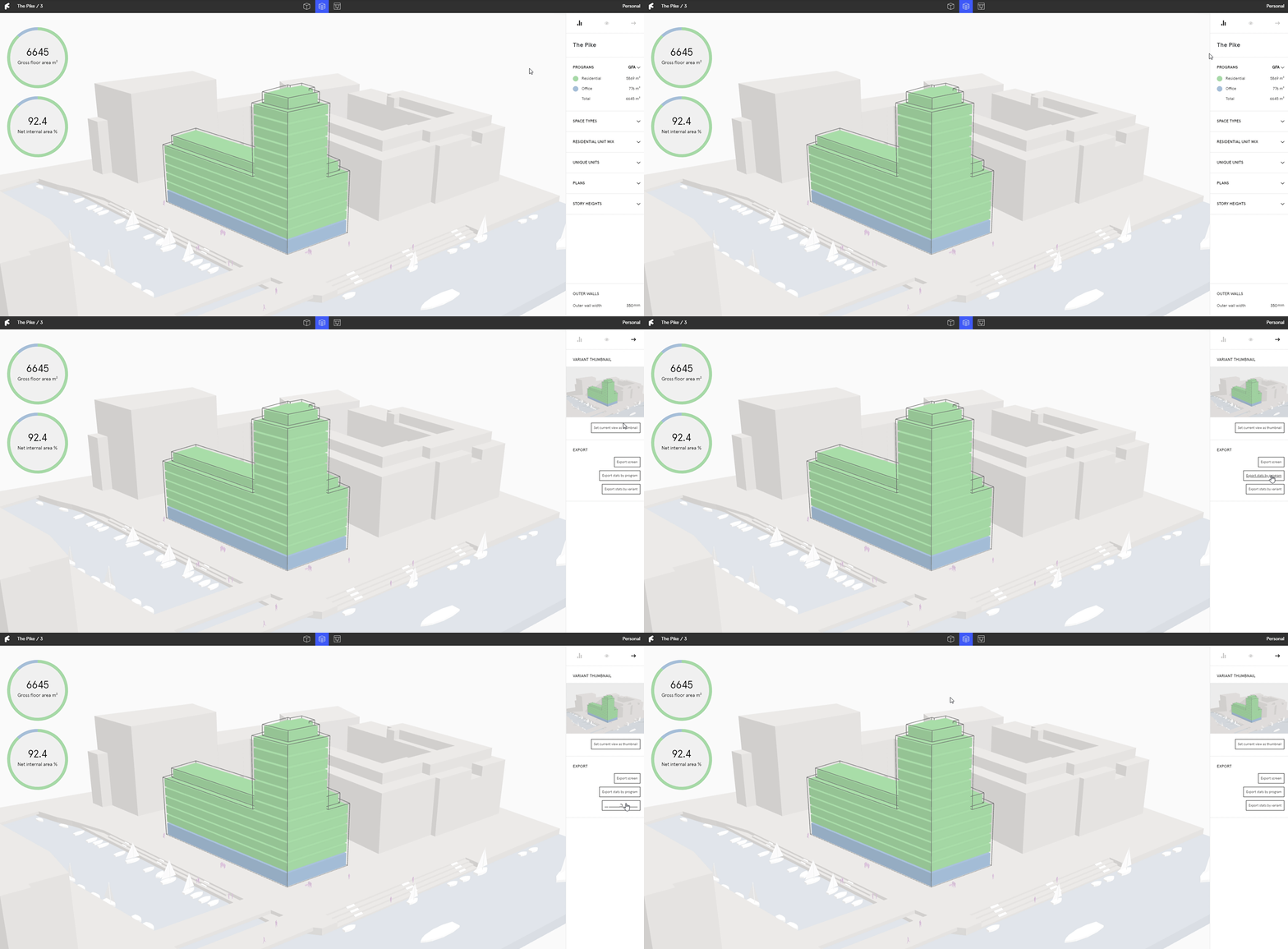
* CSV data can be exported under the **`Output`** tab on the **`Right Panel`** by selecting **`Export stats by variant`** or **`Export stats by program`**.
* PNGs can be exported under the **`Output`** tab on the **`Right Panel`** by selecting **`Export screen`**.

<figure><img src="https://content.gitbook.com/content/fr7wU7S4fvKhCNJqX17T/blobs/79ZMaMXpjO7zltO5TWvT/Export%20png%20data.gif" alt=""><figcaption></figcaption></figure>

***