> For the complete documentation index, see [llms.txt](https://docs.finch3d.com/llms.txt). Markdown versions of documentation pages are available by appending `.md` to page URLs; this page is available as [Markdown](https://docs.finch3d.com/docs/projects-and-variants/iterate-with-variants.md).
# Iterate with variants
### 1. Duplicate Variant
{% hint style="info" %}
You can use variants to make multiple design proposals within the same project- this means that they will share all data customization and can be compared for different metrics and performance.
{% endhint %}
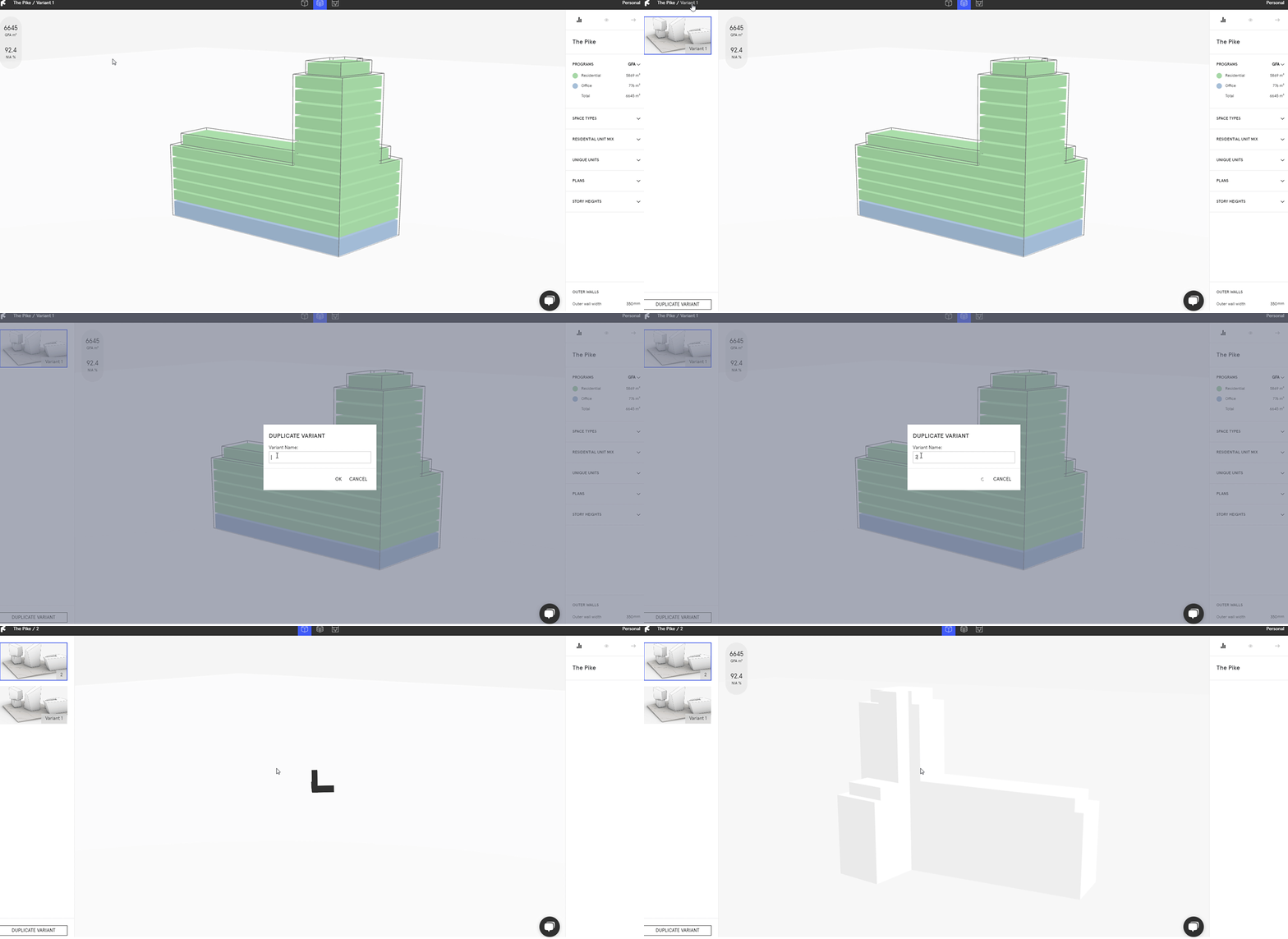
* Exit the **`Massing Studio`** by double clicking outside of the building.
* Select **`Duplicate Variant`** and input a name, hit **`OK`**.
### 2. Create New Variant
{% hint style="info" %}
Creating a new variant gives you a blank canvas- if you want to have your custom geometry in your new variant, duplicate it instead and delete the building in Rhino.
{% endhint %}
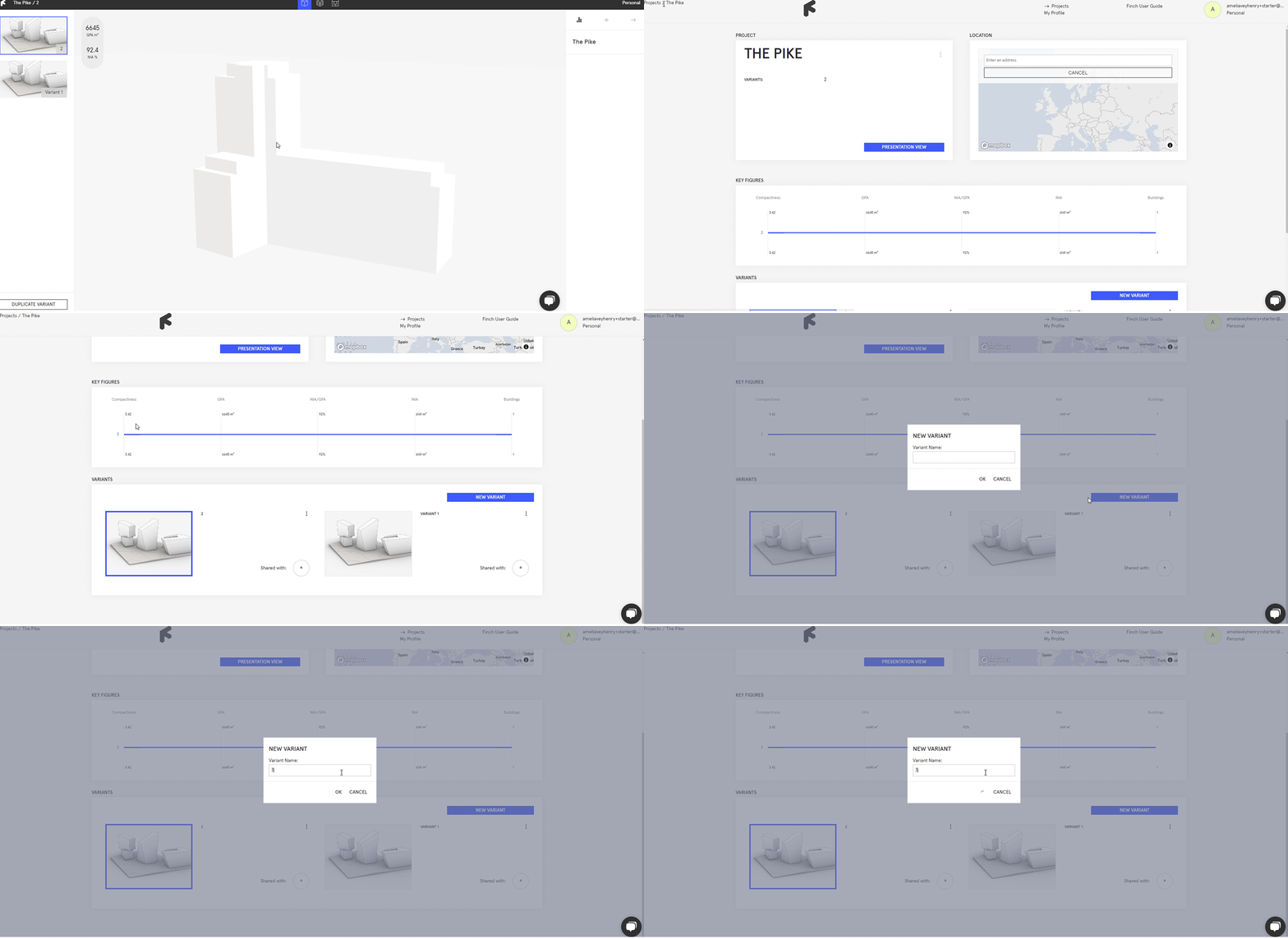
* Head out to the project overview by clicking on the **`Finch Logo`** in the upper left corner.
* Here you can find an overview of all variants within your Project.
* Select **`Create New Variant`** and enter a name, hit **`OK`**.
### 3. Edit and sync your new variants
* In Rhino, **`Load`** your new variant from the **`Variants`** drop-down menu. Edit the existing mass or add a new mass, and **`Sync`**.
### 4. Set a camera, thumbnail, and sun location
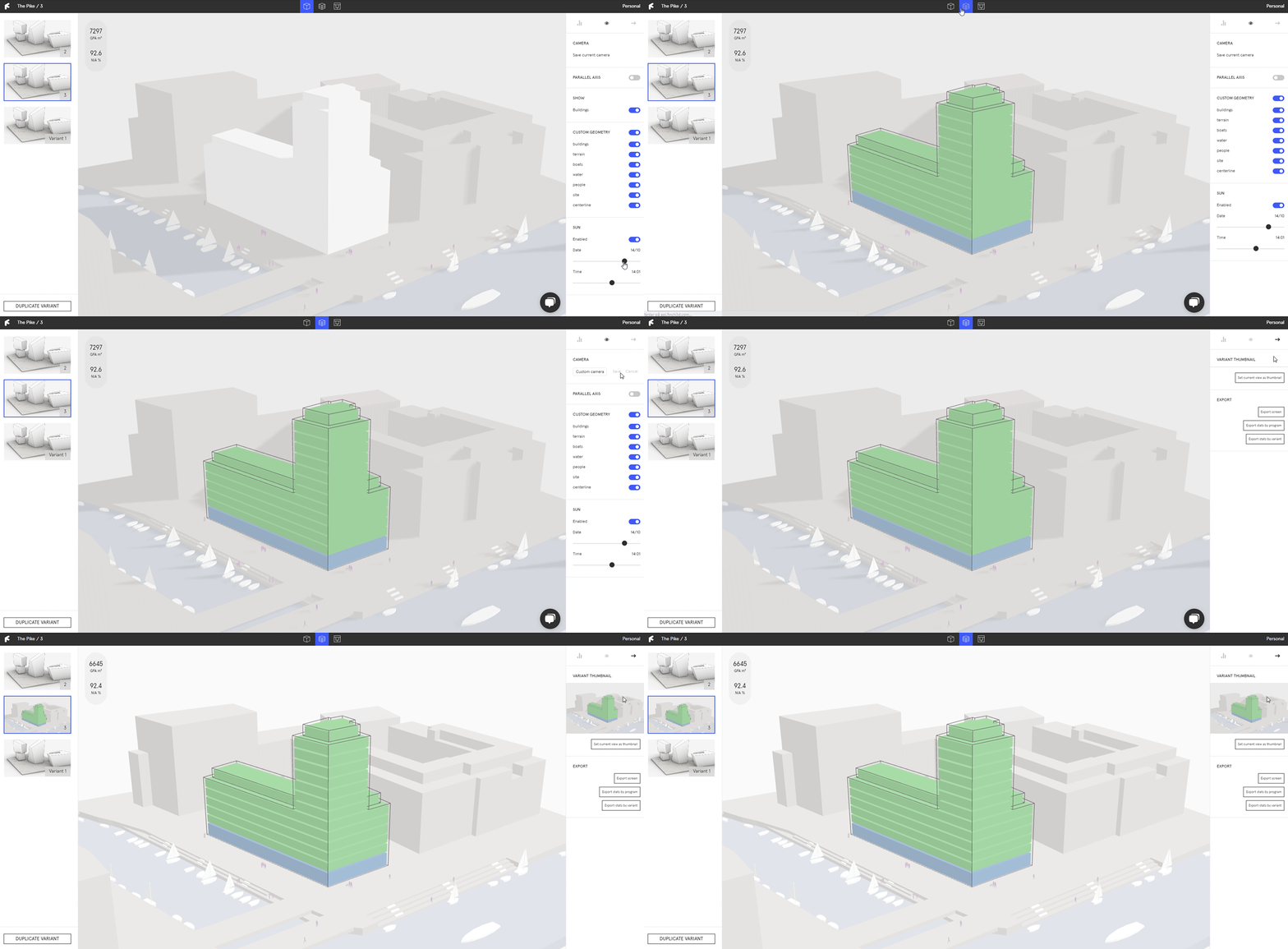
* In the **`Display`** tab of the **`Right Panel`**, toggle the **`Sun`**. Set a location when prompted and use the sliders to visualize specific dates and times.
* In the **`Display`** tab of the **`Right Panel`**, select **`Set current view as camera`** to save a view across all variants in a project. This allows you to have thumbnails from the same view.
* In the **`Export`** tab of the **`Right Panel`**, select **`Set current view as thumbnail`** to set a thumbnail.
### 5. Navigate between variants
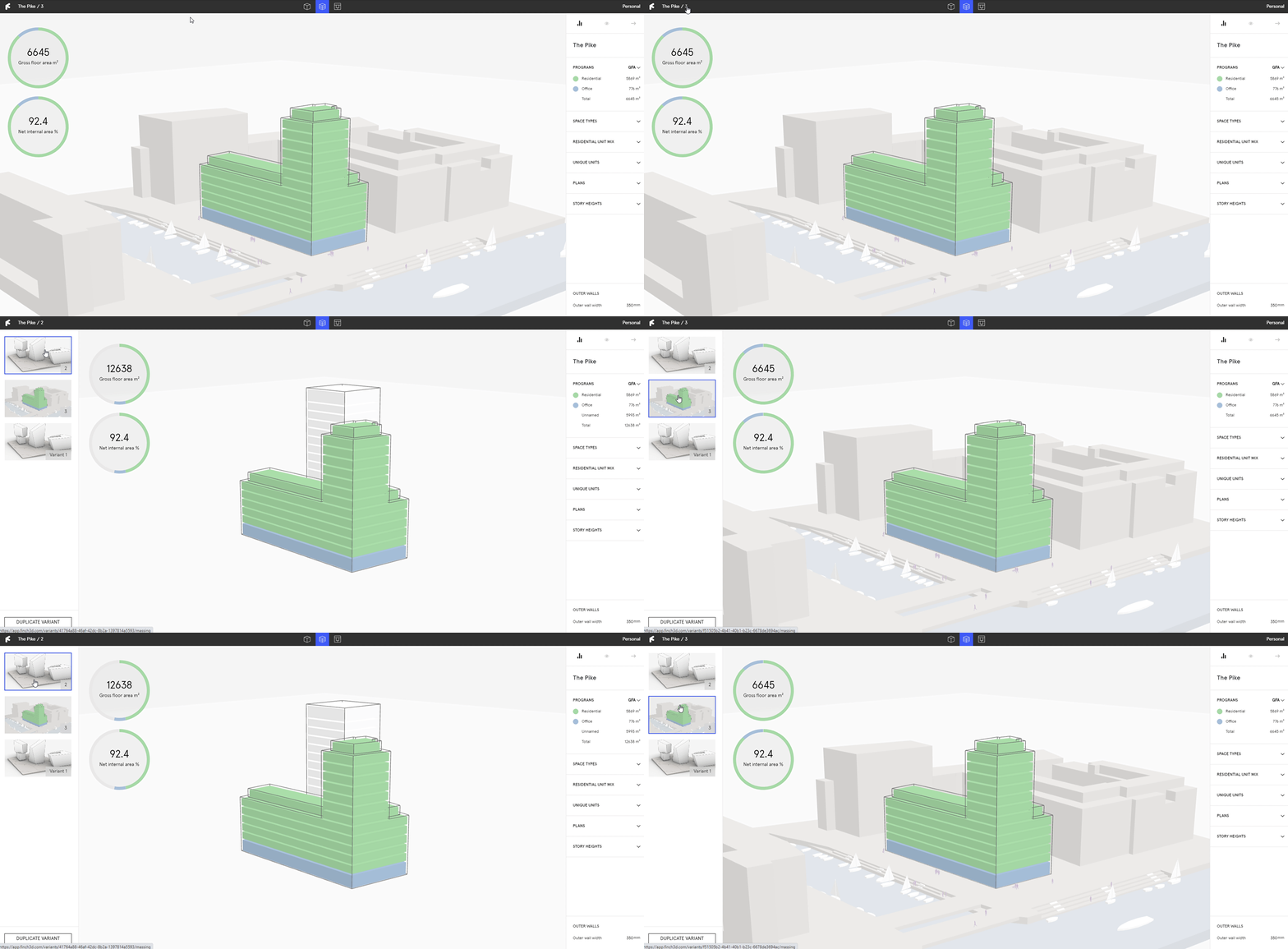
* In Finch **`Exterior View`**, all variants are listed on the **`Left Panel`**.
* Hover and select the different variants to see the **`Key Figures`** and compare them.
{% hint style="info" %}
In the **`Right Panel`**, toggle the **`Parallel Axis Diagram`** to compare the different variant's data.
{% endhint %}
***