> For the complete documentation index, see [llms.txt](https://docs.finch3d.com/llms.txt). Markdown versions of documentation pages are available by appending `.md` to page URLs; this page is available as [Markdown](https://docs.finch3d.com/docs/projects-and-variants/story-editor/generate-unit-mix-and-stairwells.md).
# Generate Unit Mix & Stairwells
The following process will be broken down into three stages: Generate Story, Generate Units and Editing
## 1: Story Setup and Size Mix Generation
### 1.1 Start Generation Process
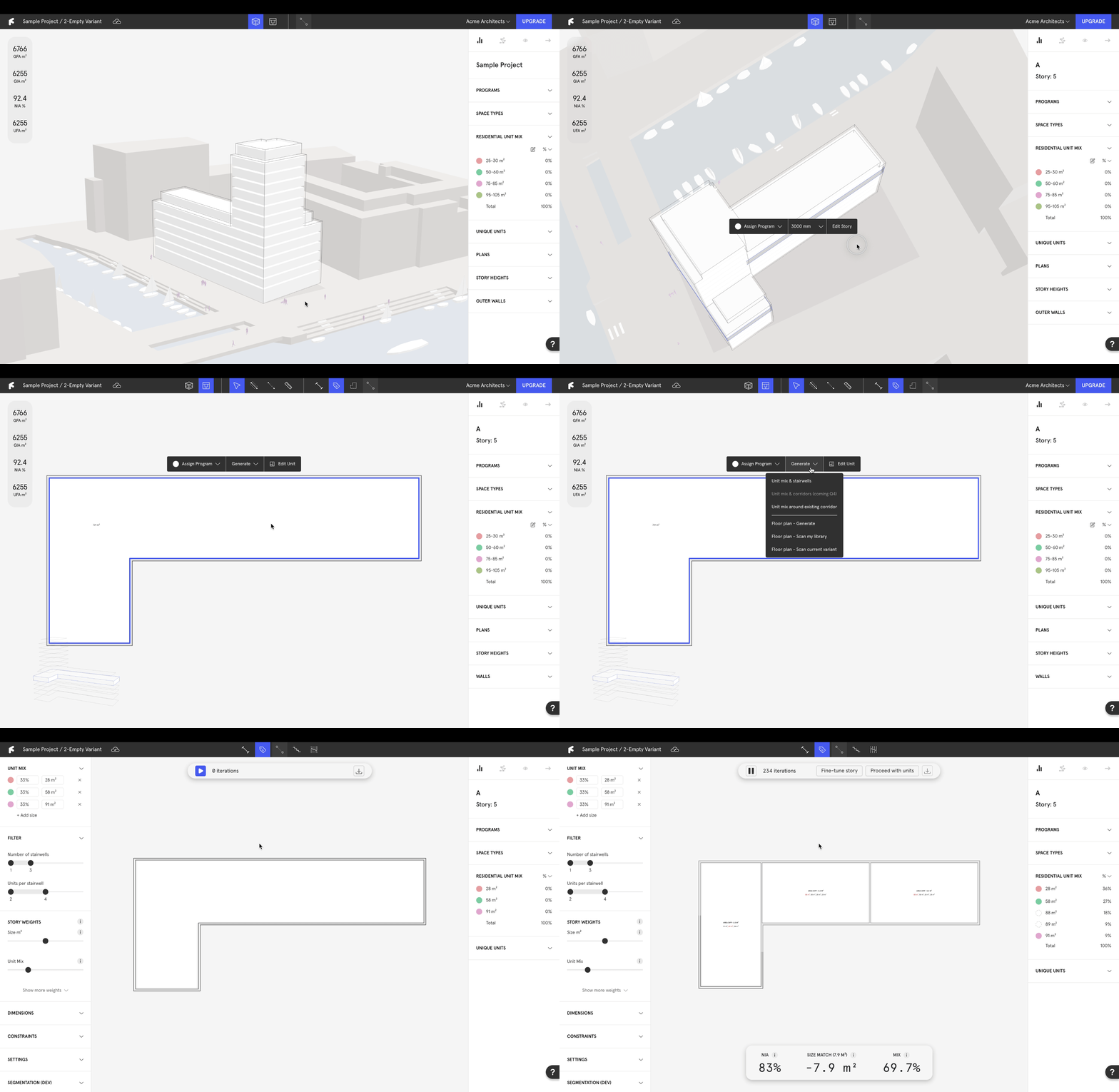
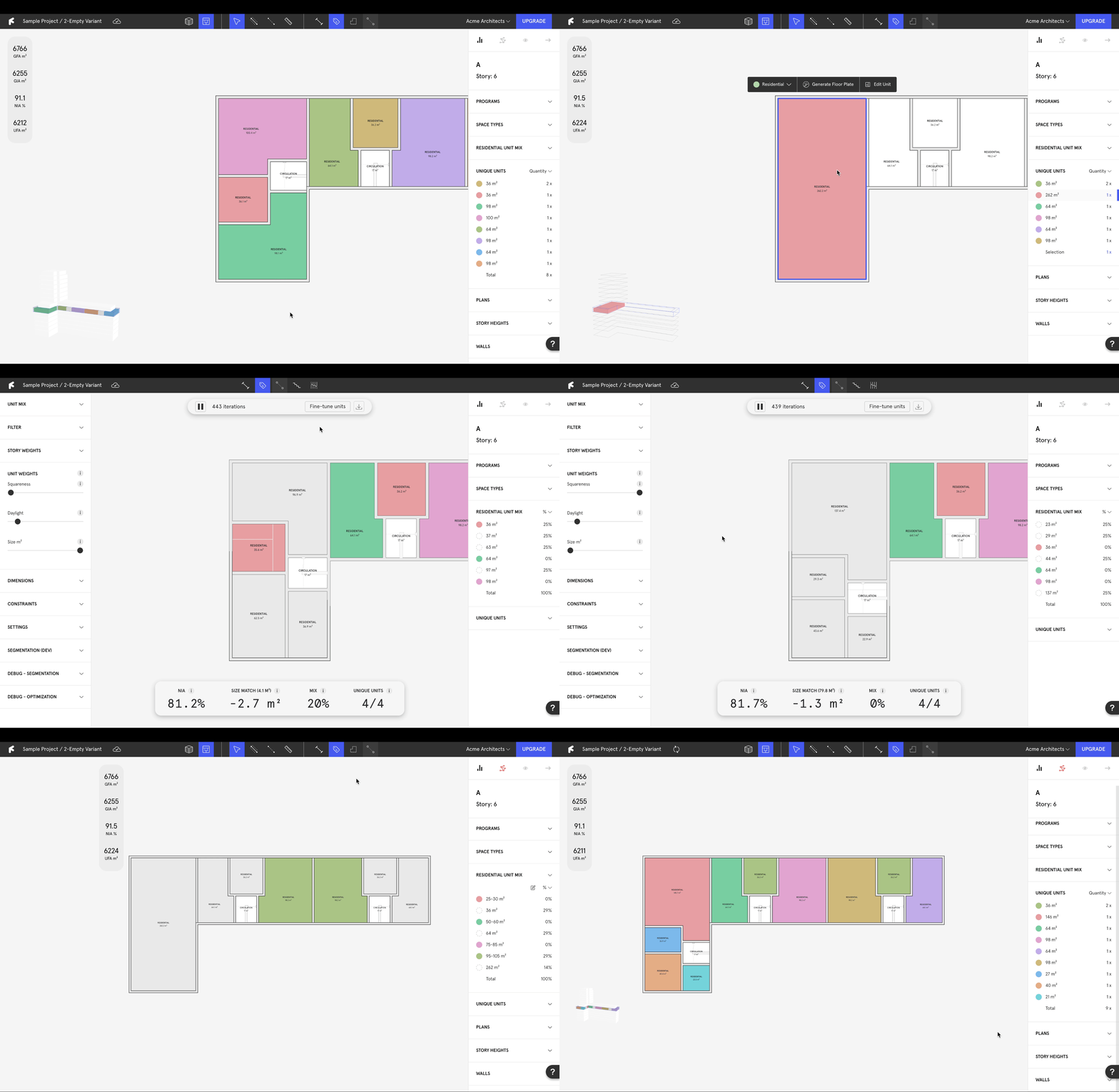
* Enter the plan view by double clicking on a story.
* Select the plan and hit **`Generate`** on the context menu. In the dropdown, select **`Unit Mix & Stairwells`**.
* The generation will begin to run.
### 1.2 Adjust Stairwell Parameters
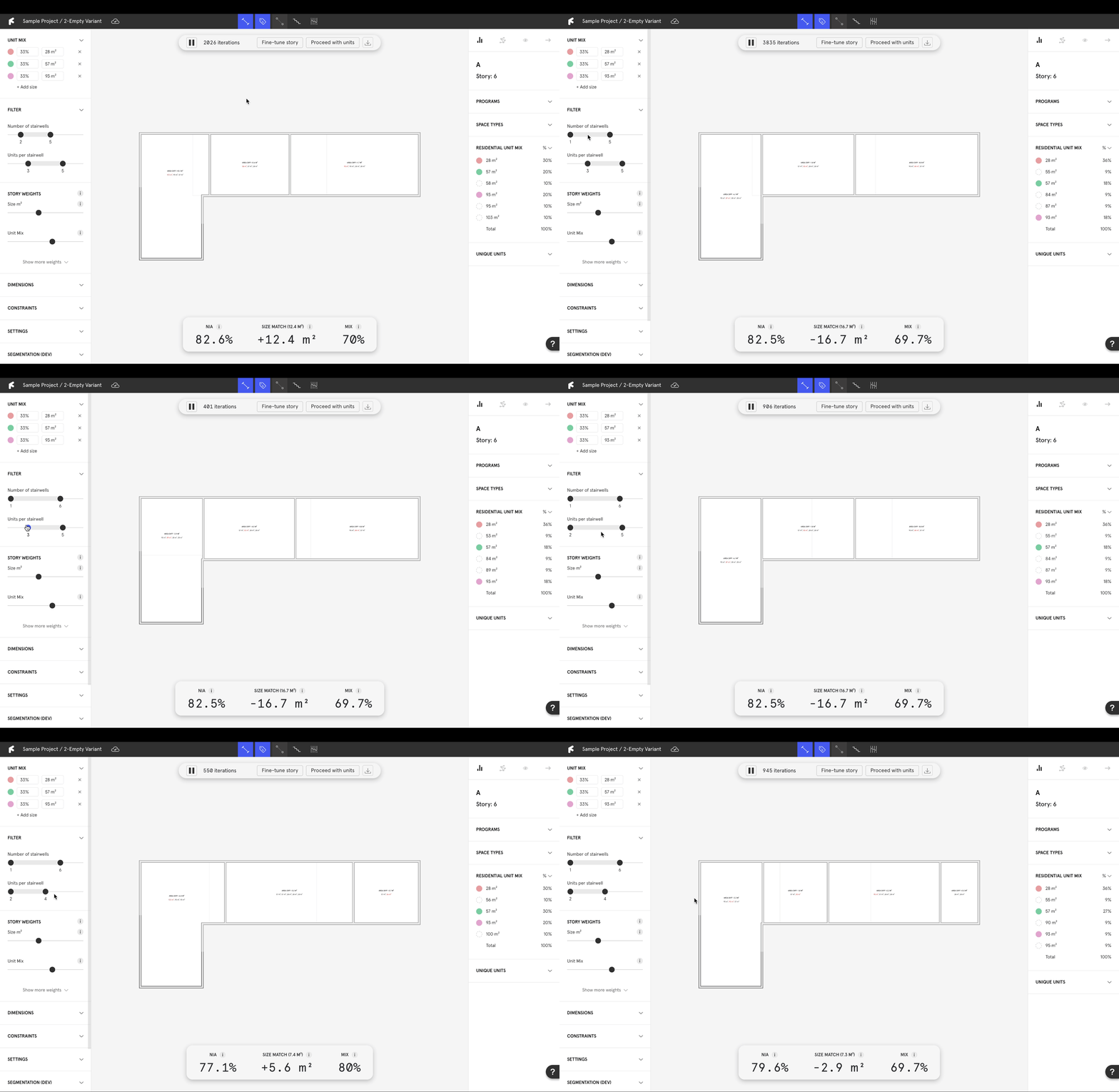
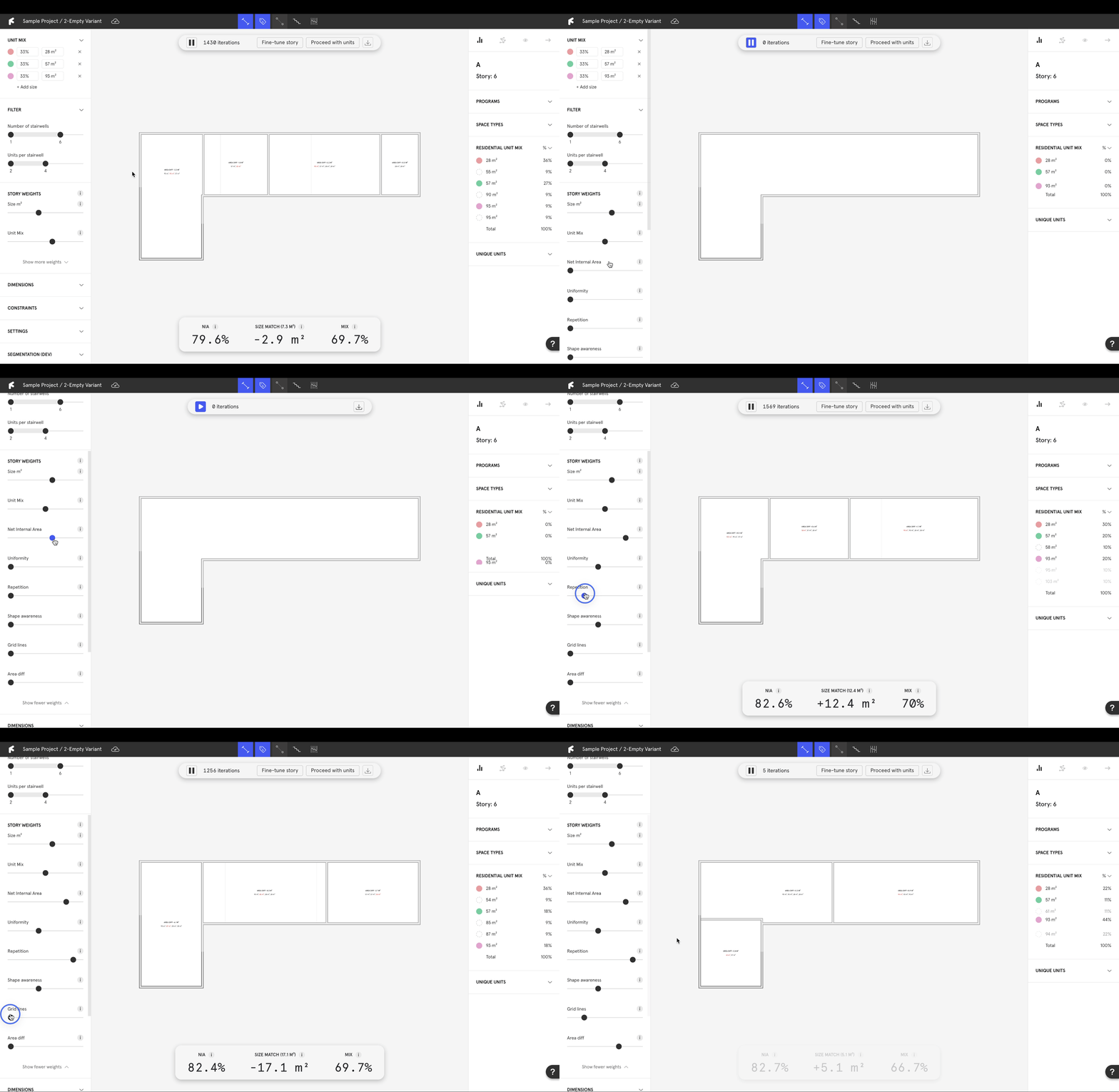
* Under the **`Filter`** dropdown in the left panel, adjust the **`Number of Stairwells`** and **`Units per Stairwell`**.
{% hint style="info" %}
If you have strict stairwell requirements, be sure to set the stairwell parameters first, as the number of stairwells and units per stairwell affect the overall layout.
{% endhint %}
### 1.3 Input Project Conditions
{% hint style="info" %}
These prerequisites will heavily affect the outcome of the algorithm
{% endhint %}
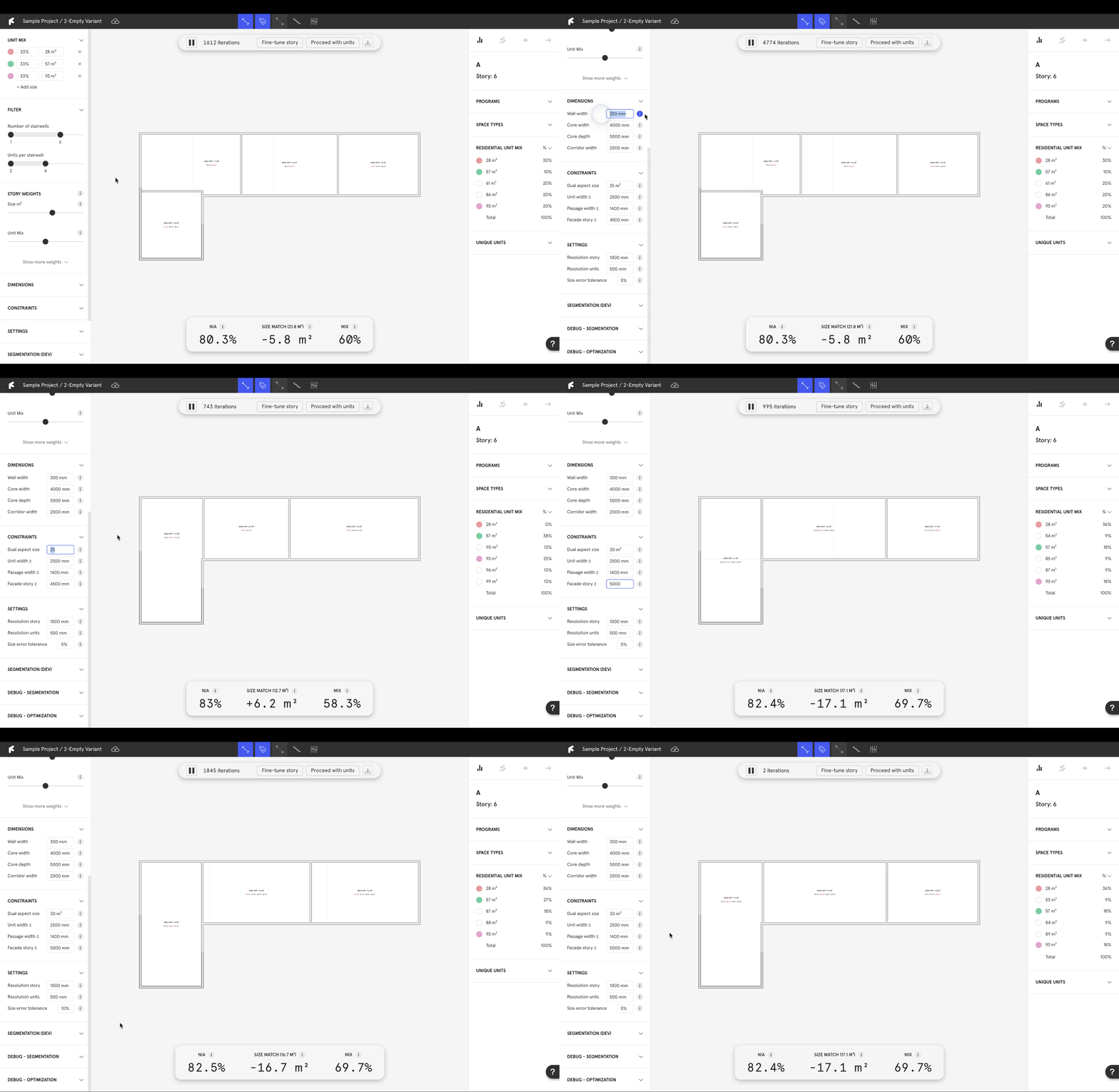
* The **`Dimensions`** drop down lets you adjust **`Wall width`**, **`Core width`**, **`Core depth`** and **`Corridor width`**.
* The **`Constraints`** drop down lets you define **`Dual aspect size`**, **`Unit width`**, **`Passage width`** and **`Facade story`**.
* The **`Settings`** drop down lets you modify **`Resolution story`** (early-stage precision), **`Resolution units`** (later-stage precision) and **`Size error tolerance`** (accuracy of sizes).
### 1.4 Input Unit Mix
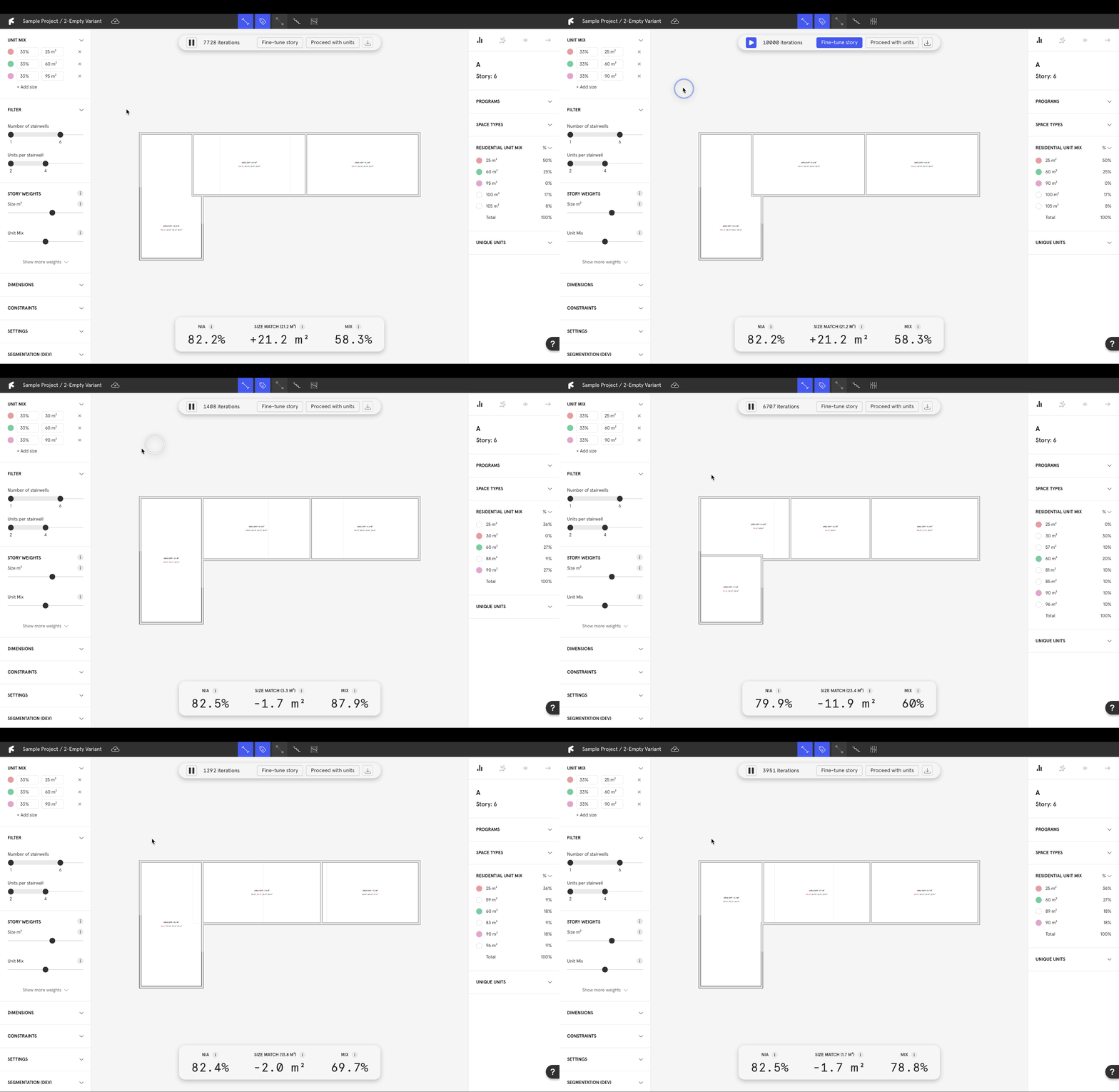
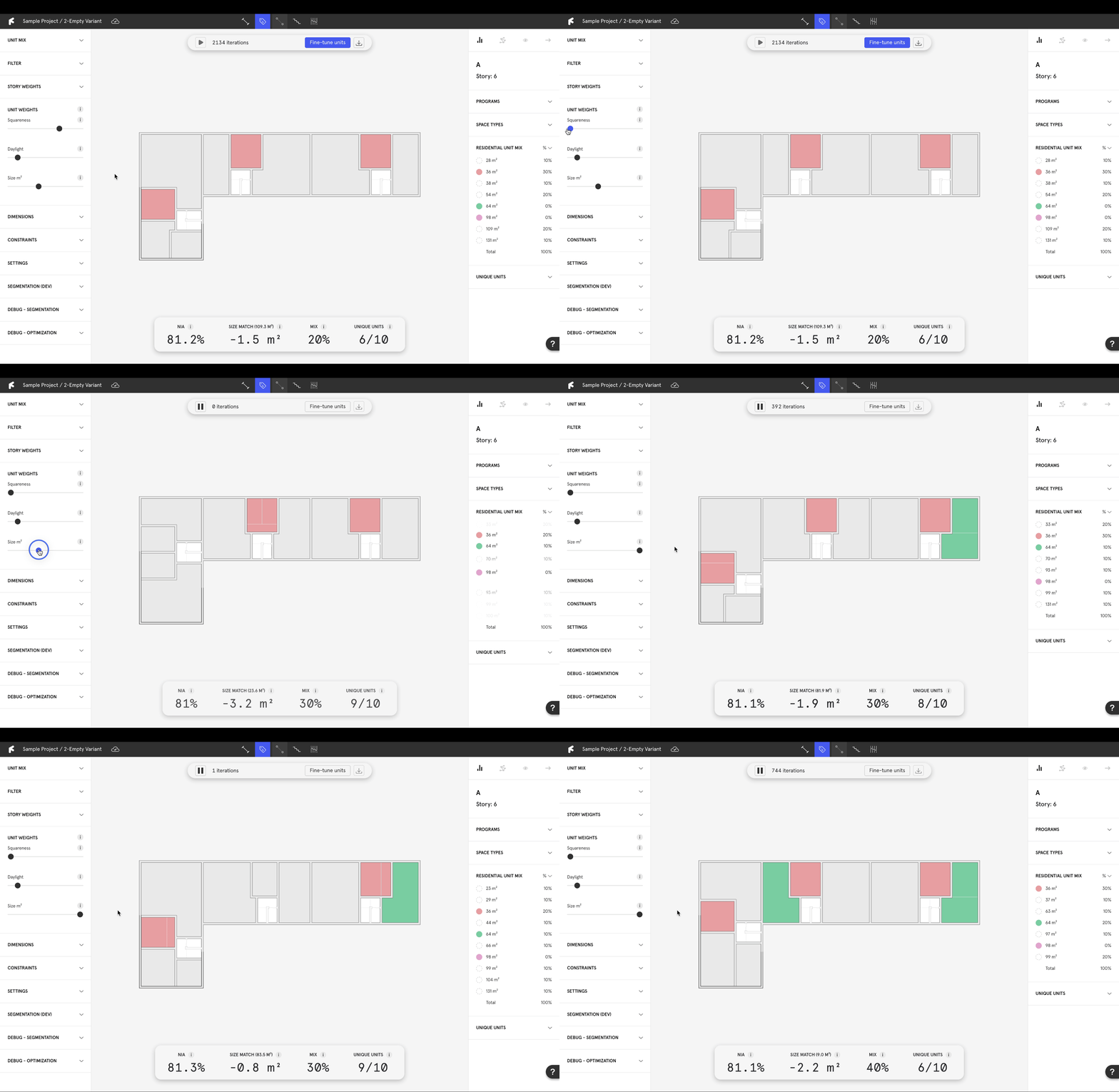
* Input the desired **`Unit Mix`** in the upper left panel.
* Evaluate **`Unit Mix`** with the information bar at the bottom of the window. **`Size Match`** shows you the total **`Area Difference`**.
{% hint style="info" %}
The **`Area Difference`** reflects how well the mix fits your building. Use this to adjust your unit mix for optimal results. Influencing factors include: building mass shape, unit mix, story weights and settings.
{% endhint %}
### 1.5 Control Algorithm Metrics
{% hint style="info" %}
At this stage the weights are primarily focused on adjusting the mix. More precise adjustments (daylight, squareness and size) can be made later.
{% endhint %}
* Under the **`Story Weights`** dropdown in the left panel, interact with the weights to prioritize specific metrics.
* Metrics with their sliders further to the right will be prioritized.
### 1.6 Fine-tune Segmentation
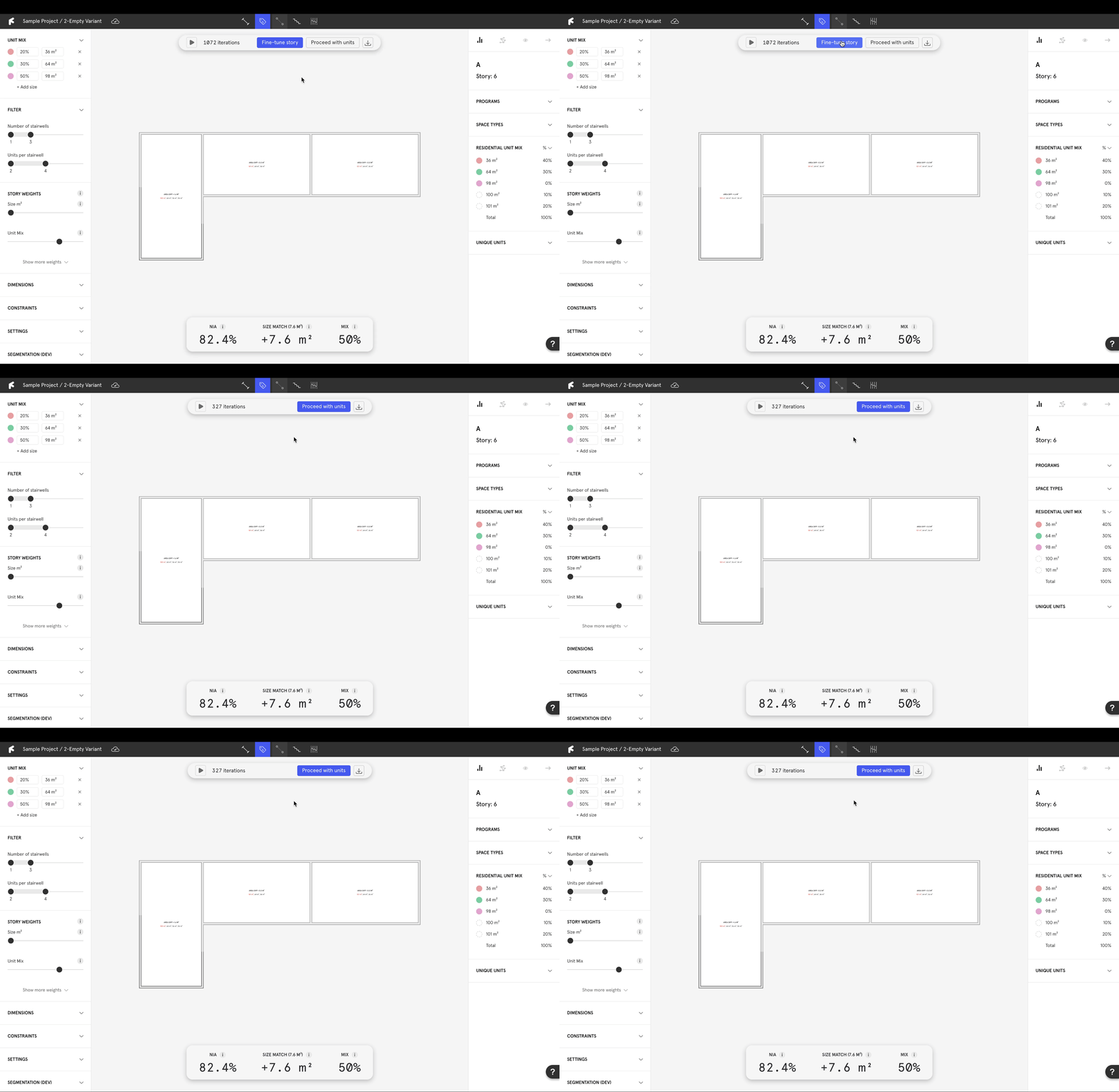
* **`Fine-tune story`** by selecting the option in the header to optimize your results.
* The algorithm will optimize the layout, combining area differences into one section to prioritize size accuracy in as many apartments as possible.
## 2. Generate Units and Stairwells
### 2.1 Start Generation Process
{% hint style="warning" %}
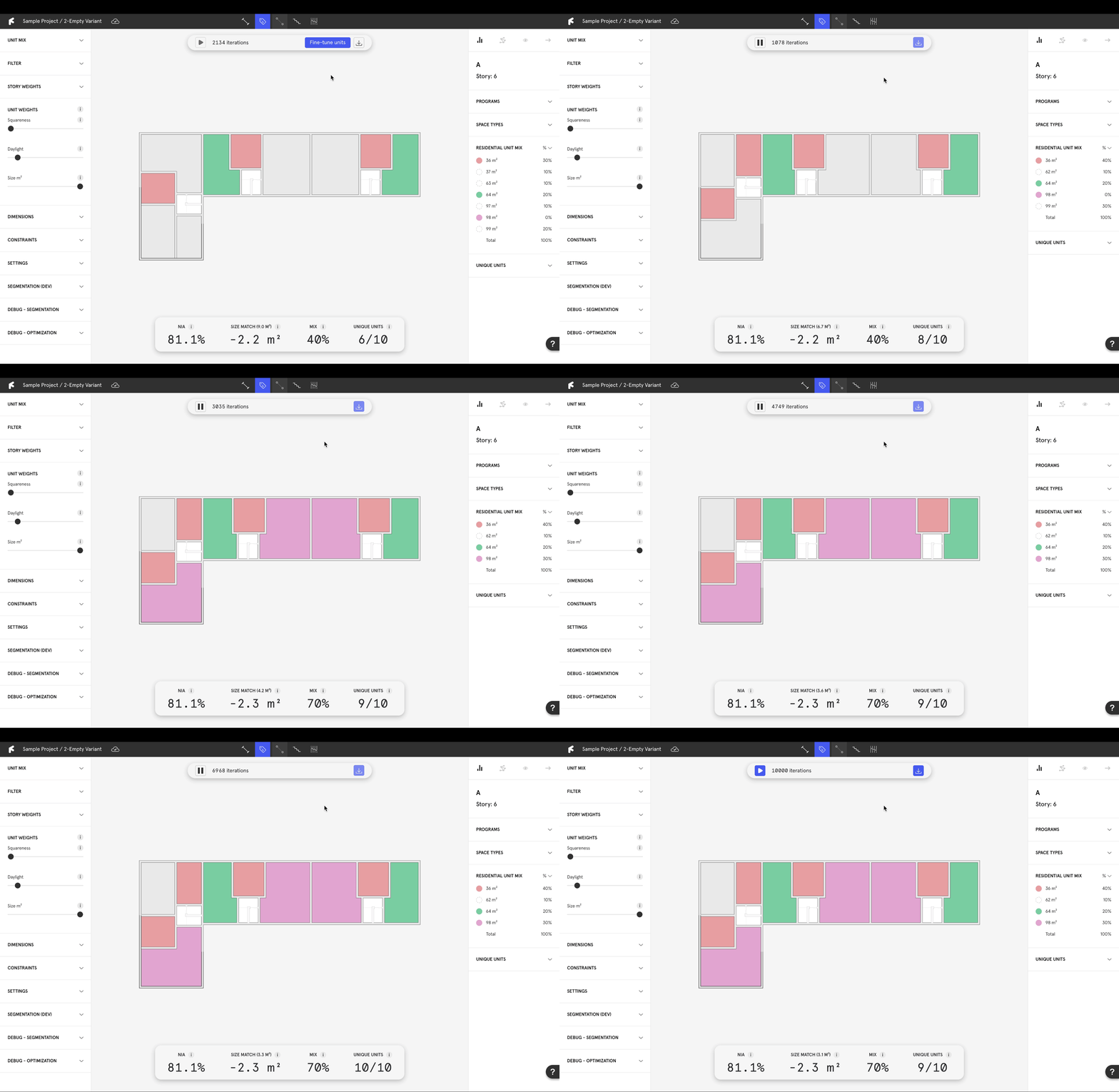
Letting the algorithm run until it stops itself at each stage will result in more accurate sizes at the end of the process.
{% endhint %}
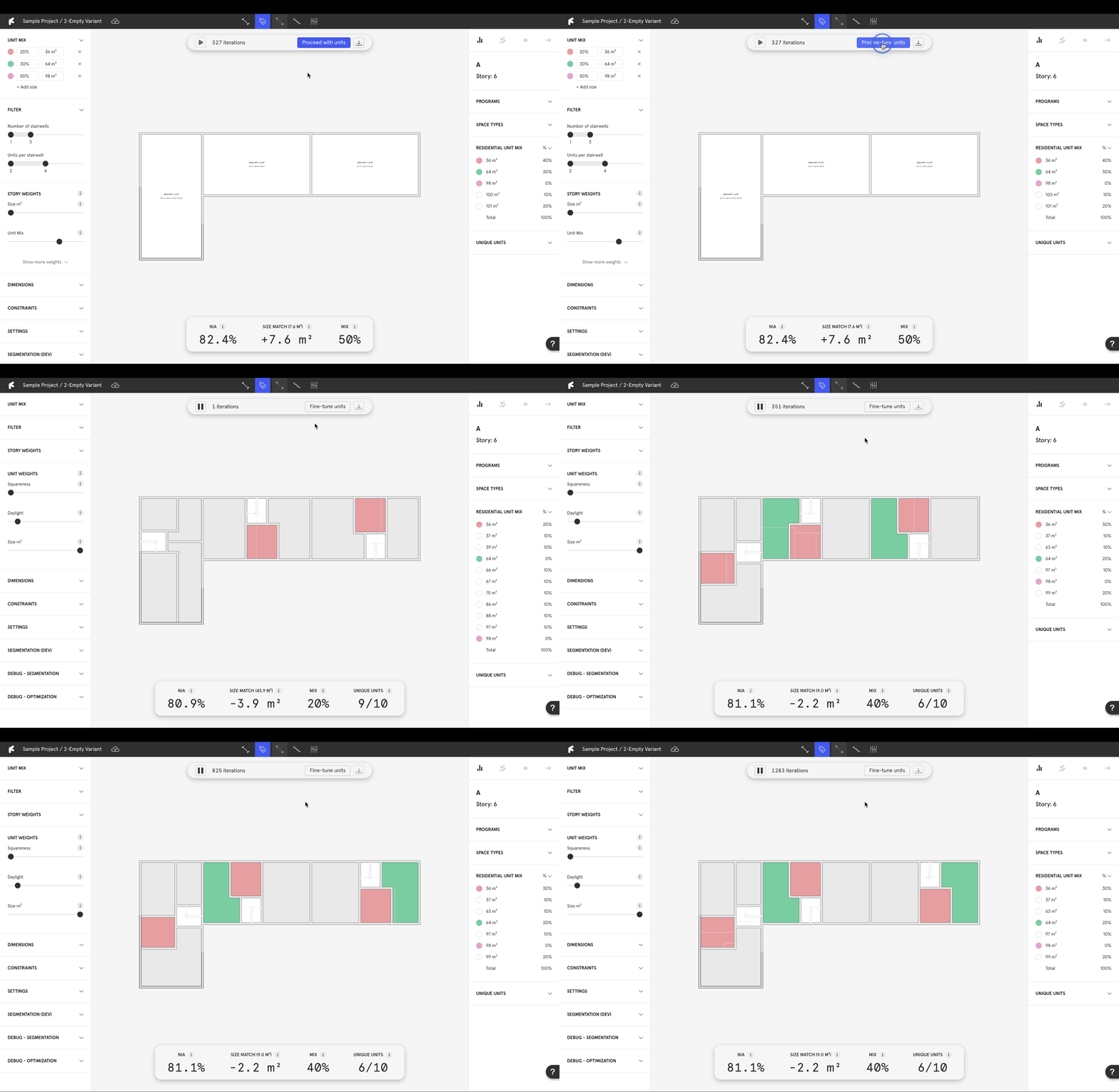
* Once you are satisfied with the areas, select **`Proceed to units`** in the same header.
* The algorithm will begin generating units and stairwells.
* The display colors in the right panel are inherited from the unit mix set in the left panel. Units receive a color when they match a target size.
{% hint style="info" %}
At this stage, the algorithm will explore multiple preliminary configurations for units and stairwells. Do not worry if the algorithm only hits one or two size targets at this point, the layout is not final, as further fine-tuning will occur before it is actually assigned to the plan.
{% endhint %}
### 2.2 Direct Stairwell Positions
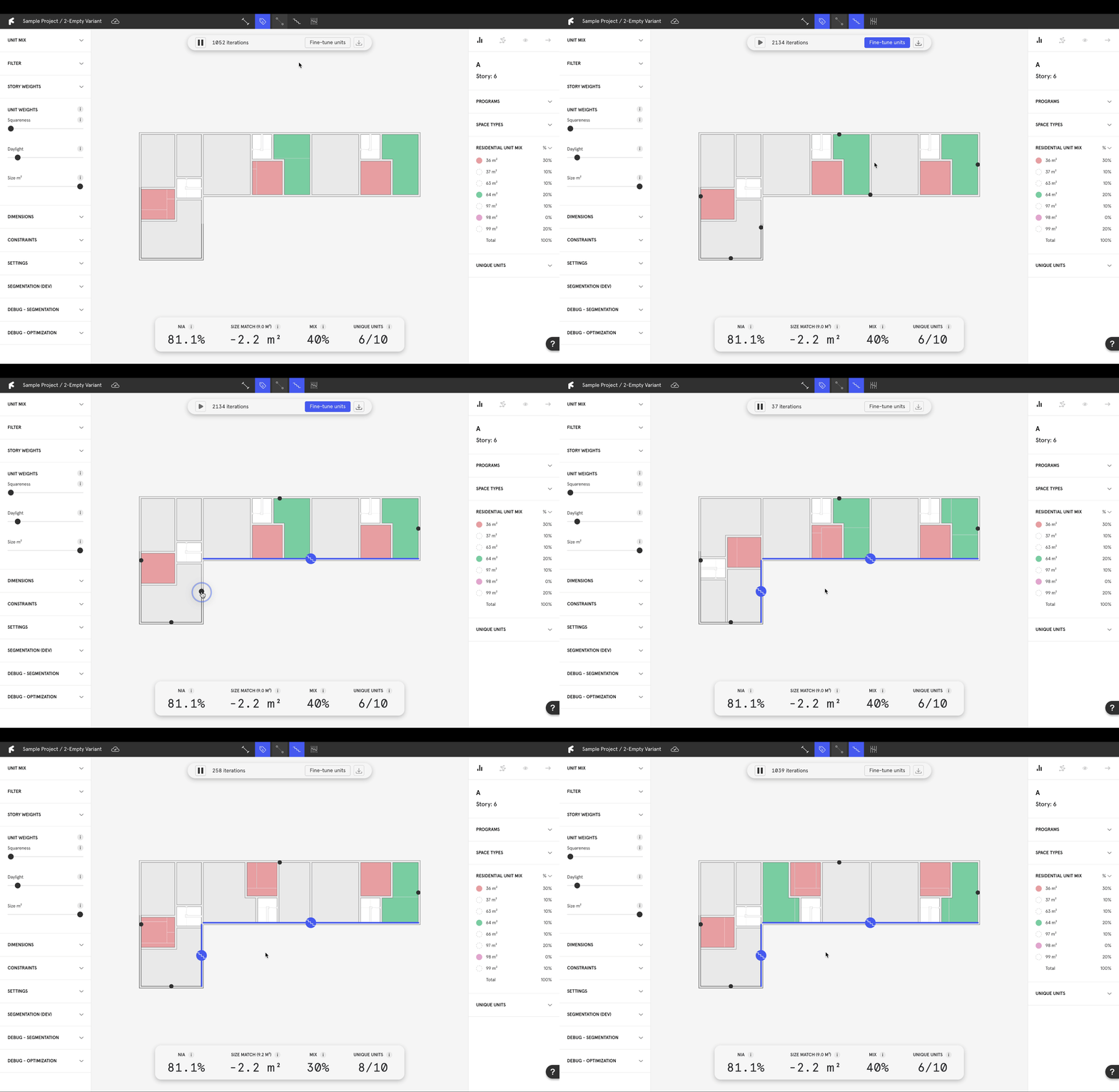
* Select **`Stairwell attractors`** in the top banner.
* Choose which facades should be prioritized for stairwell placement.
### 2.3 Control Algorithm Metrics
* Under the **`Unit Weights`** dropdown in the left panel, interact with algorithm weights to prioritize specific metrics.
* Metrics with sliders further to the right will receive higher priority.
### 2.4 Fine-tune Units
* **`Fine-tune units`** via the options in the header to optimize results.
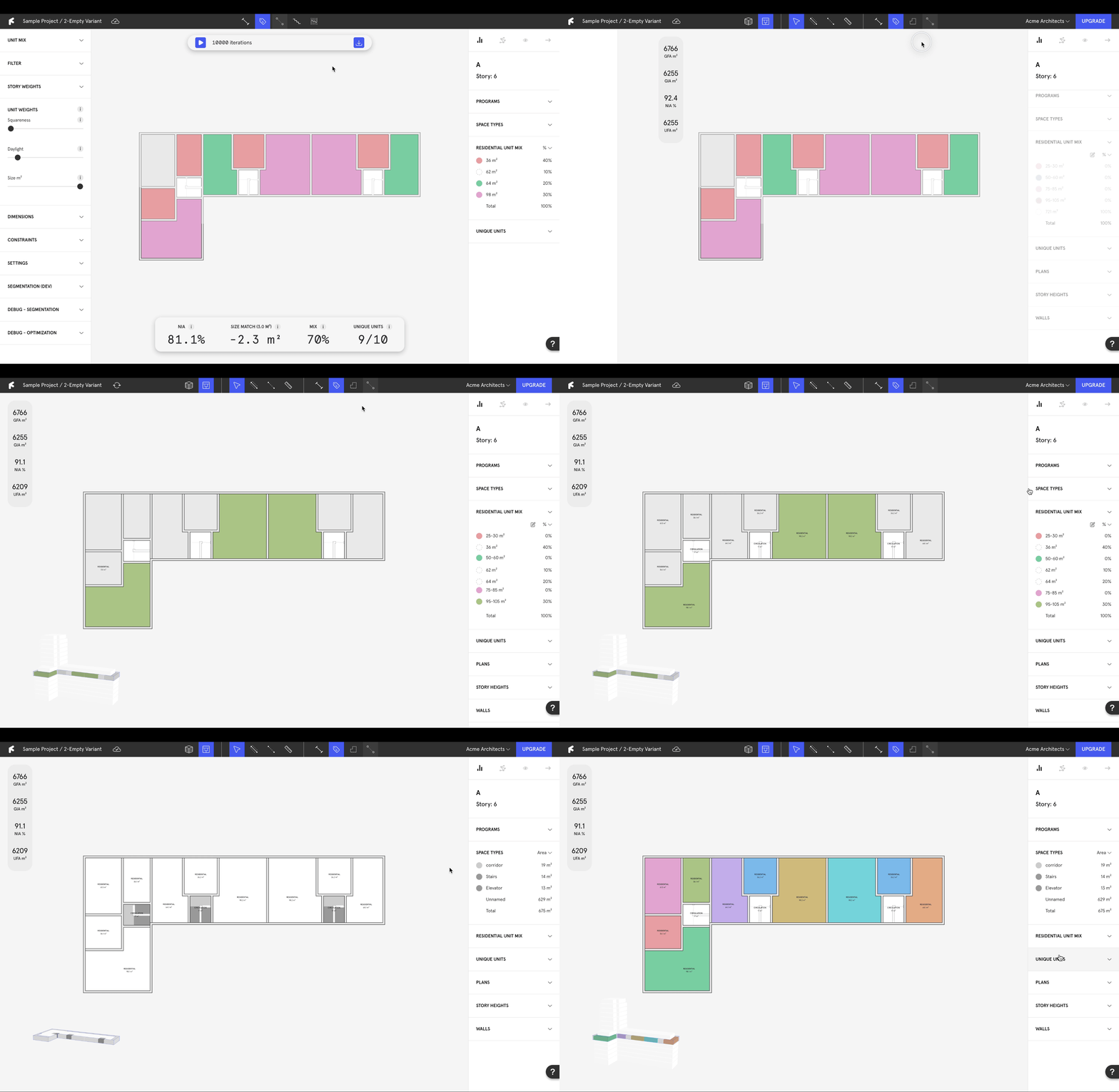
* The algorithm will make small adjustments to the units until as many as possible hit their targets.
{% hint style="info" %}
At this stage most apartments should receive a color, indicating that they have hit their targeted sizes.
{% endhint %}
## 3. Edit and customize
### 3.1 Apply Plan
Once satisfied with the generation, select **`Apply Plan`** in the header to bake it.
### 3.2 Edit the results
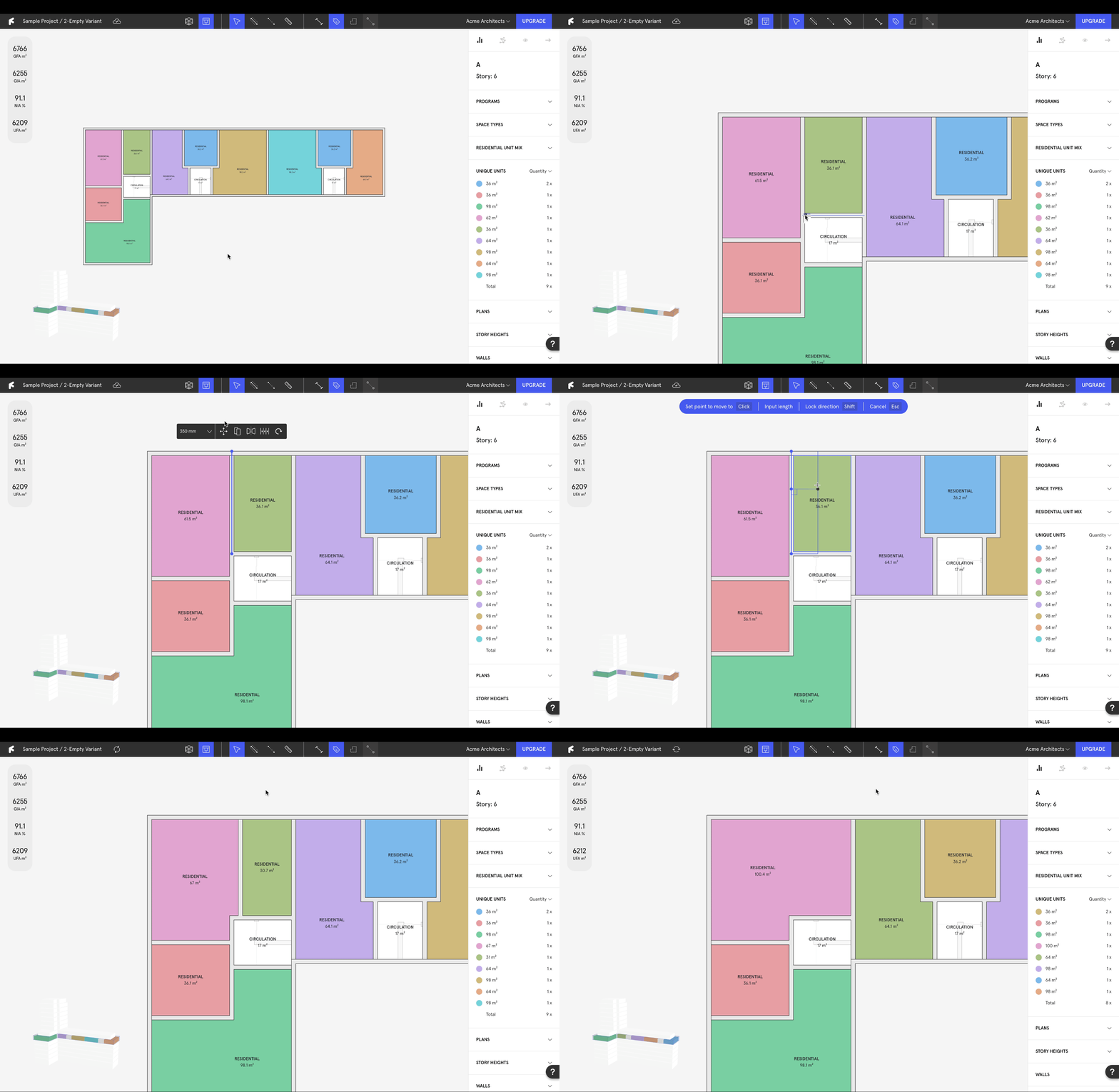
{% hint style="info" %}
Finch is a complete editing tool. All generated plans can be fully edited and customized.
{% endhint %}
* Drag walls specific distances by typing the distance as you move.
* Change wall widths by selecting a wall and inputting the new wall thickness in the **`Context Menu`**.
### 3.3 Regenerate
{% hint style="info" %}
Like one half of the floor plate but not the other? Finch can generate in sections!
{% endhint %}
* Delete the unwanted walls and run the algorithm again in the new section.
* Revisit previous steps to further tweak the algorithm.
***